How to Save One Page of a PDF
You have a 40 page report and you only need page 7. The fix takes under a minute: print just that page to a new PDF, or pull the page out of the original file with a splitter.
Quick answer
To save one page of a PDF, open the file, press Ctrl + P on Windows or Cmd + P on Mac, set the destination to Save as PDF, change Pages to Custom, type the single page number, and click Save. If the page must stay as it is, use a splitter instead and download the new one page file.
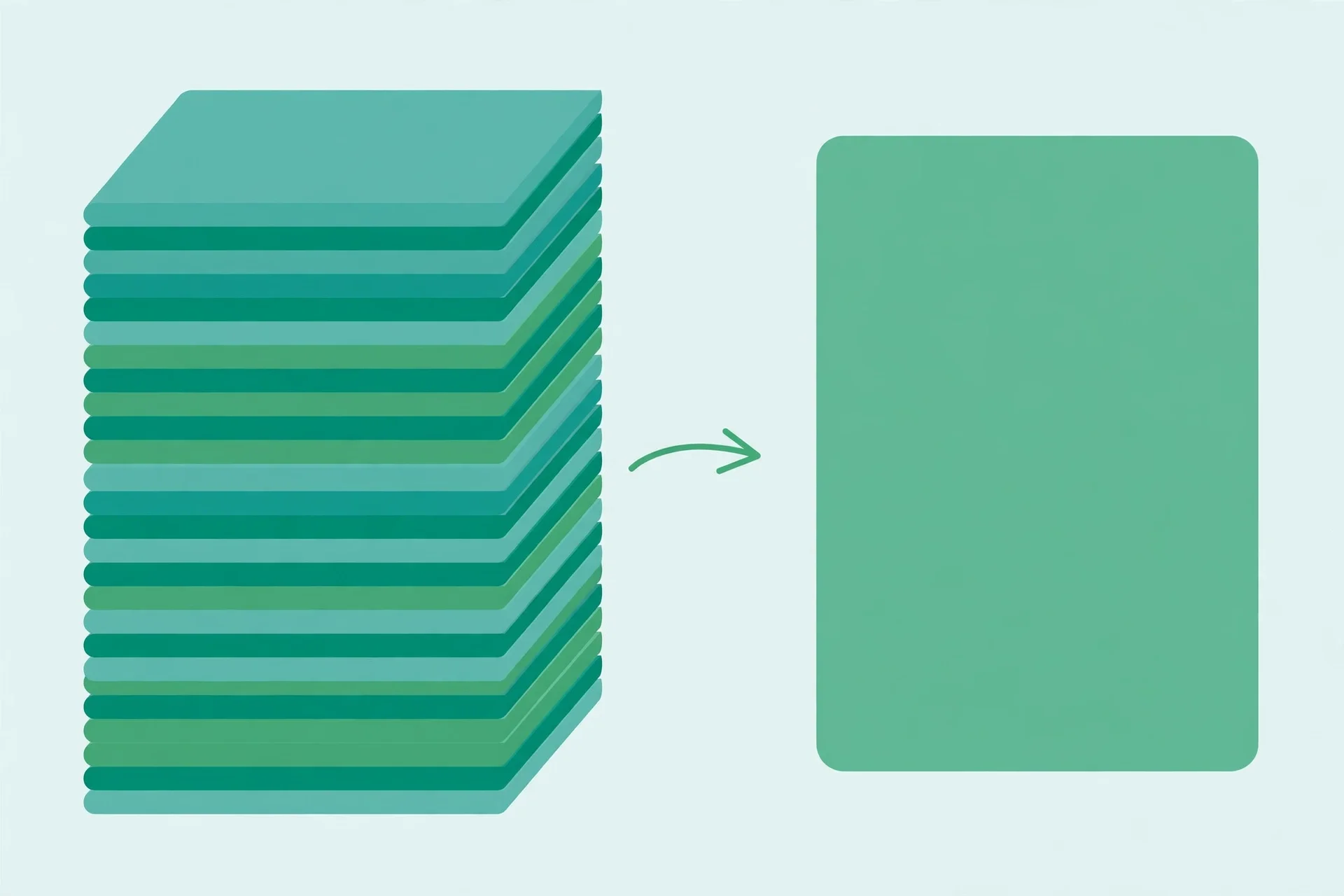
Save one page in Chrome or Edge on a computer
Chrome and Edge already contain everything you need, and this is the method most people should try first. It needs no install, no account, and no upload. First, find your page in the thumbnails and note the number your reader shows, not the number printed on the page itself.
- Open the PDF in Chrome or Edge. Drag the file into a browser window, or open it from your downloads and let the browser show it.
- Open Print. Press Ctrl + P on Windows or Cmd + P on Mac, or open the browser menu and click Print.
- Set the destination to Save as PDF. In Chrome, pick Save as PDF from the Destination list. In Edge, the same choice appears in the printer list.
- Change Pages to Custom. The dialog starts on All. Switch it to Custom, then type the single page number, for example 7.
- Check the preview, then click Save. The preview should show only your page. Pick a folder, give the file a clear name, and click Save.
Check the preview before you save. If it shows the wrong page, your page number is off. Leave layout and paper size alone unless the page looks cut off. Google's Chrome print help covers the same print dialog and destination choices.
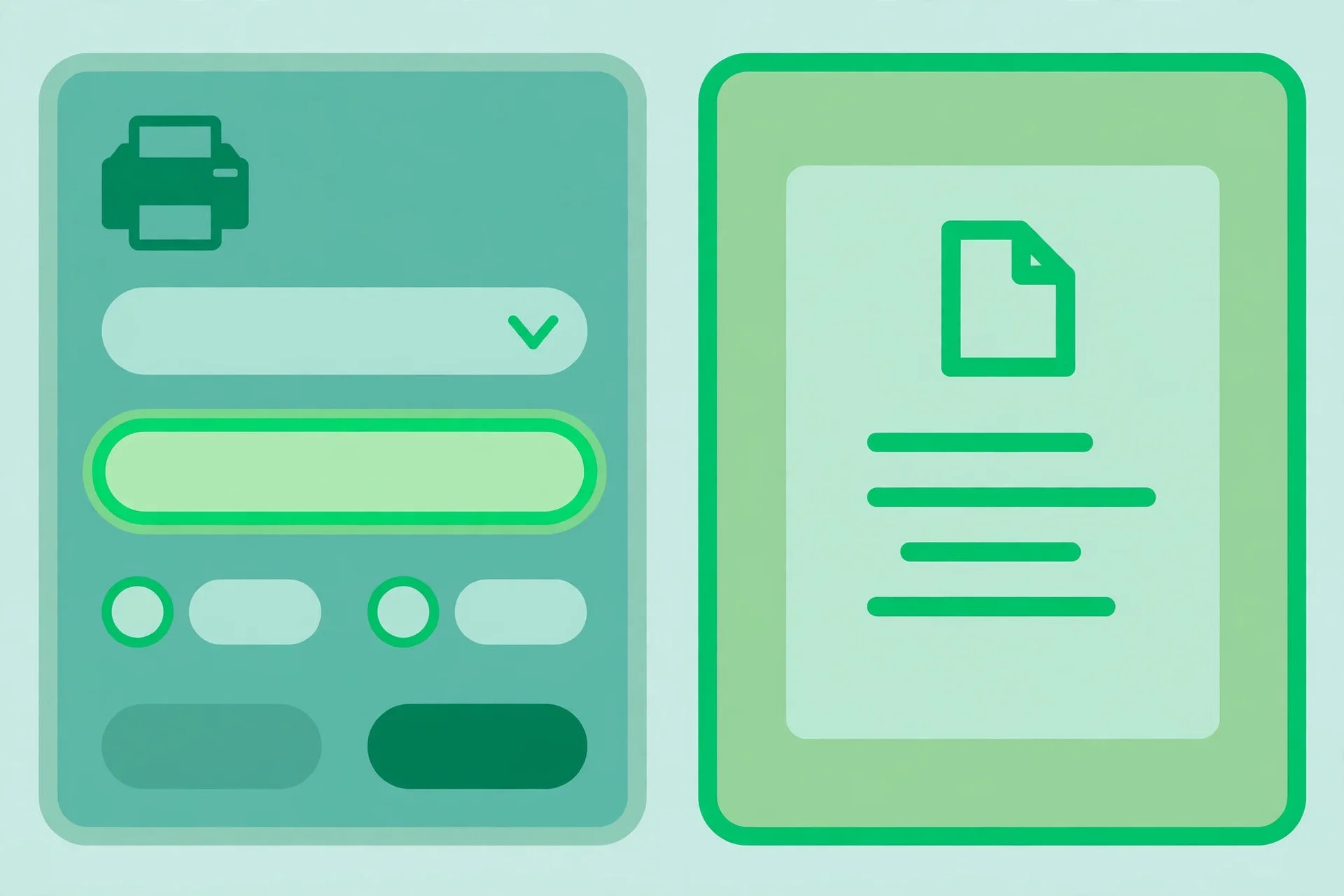
Save one page with Windows Print to PDF
On Windows, you do not need Chrome. Any app that can open a PDF and print can save one page, because Windows supplies a PDF printer. Edge is the easiest route.
- Open the PDF in Microsoft Edge. Right click the file and choose Open with, then Microsoft Edge.
- Open Print. Press Ctrl + P, or open the menu and click Print.
- Pick Microsoft Print to PDF as the printer. If your real printer is selected, change the printer list to Microsoft Print to PDF.
- Set Pages to Custom and type the page number. Type one number only, for example 7, not a range.
- Click Print, then name and save the file. Pick a folder and a clear file name, then click Save.
If Microsoft Print to PDF is missing from your printer list, it is usually turned off in Windows Features. Open Start, type Windows Features, open Turn Windows features on or off, tick Microsoft Print to PDF, and click OK. If the box is already ticked, clear it, click OK, restart, then tick it again to rebuild the printer. If you would rather skip that step, the Chrome method above and the splitter method below need no Windows printer at all.
Save one page with Mac Preview
Mac Preview is built into every Mac, and it shows page thumbnails by default, which makes finding the right page easy.
- Open the PDF in Preview. Double click the file, or right click it and choose Open With, then Preview.
- Find your page in the thumbnails. The sidebar shows every page. Click the page you need and note its number.
- Open File, then Print. Press Cmd + P, or click File in the menu bar and choose Print.
- Set the page range. Under Pages, choose Range From, and type the same page number in both boxes, for example From 7 to 7.
- Open the PDF menu and choose Save as PDF. The PDF menu sits in the bottom left corner of the print dialog. Pick a name and a folder, then click Save.
If you select pages in the thumbnail sidebar first, the print dialog may offer the selected pages directly, so you do not type a range at all. Try the typed range first, since it works in every version. The sidebar option is labelled Selected Pages in Sidebar, and it appears only after you select pages in the sidebar and click Show Details in the print dialog.
Save a single page PDF on iPhone
Saving a single page PDF on iPhone takes one extra gesture, because the save button hides behind the print preview. Once you know it, the job takes under a minute, and you need no extra app.
- Open the PDF in Files or your PDF app. Find it in Files, or open it from Mail or Safari.
- Tap Share, then tap Print.
- Set the Range to the page you need. On the Printer Options screen, change the range from All to the single page you want.
- Pinch outward on the preview. Place two fingers on the preview page and spread them apart. The preview opens as a full PDF page of its own.
- Tap Share again, then Save to Files. Pick a folder and tap Save.
The pinch step is the part people miss. If you tap Print at step 3, your phone sends the page to a printer instead of saving a file. If the pinch does not work in your app, try opening the same file in Files first. The Files route is the same flow: open the file in Files, tap Share, then Print, pinch outward on the preview, tap Share again, and choose Save to Files. Save the file before you share it, so you can attach it to an email or a form later.
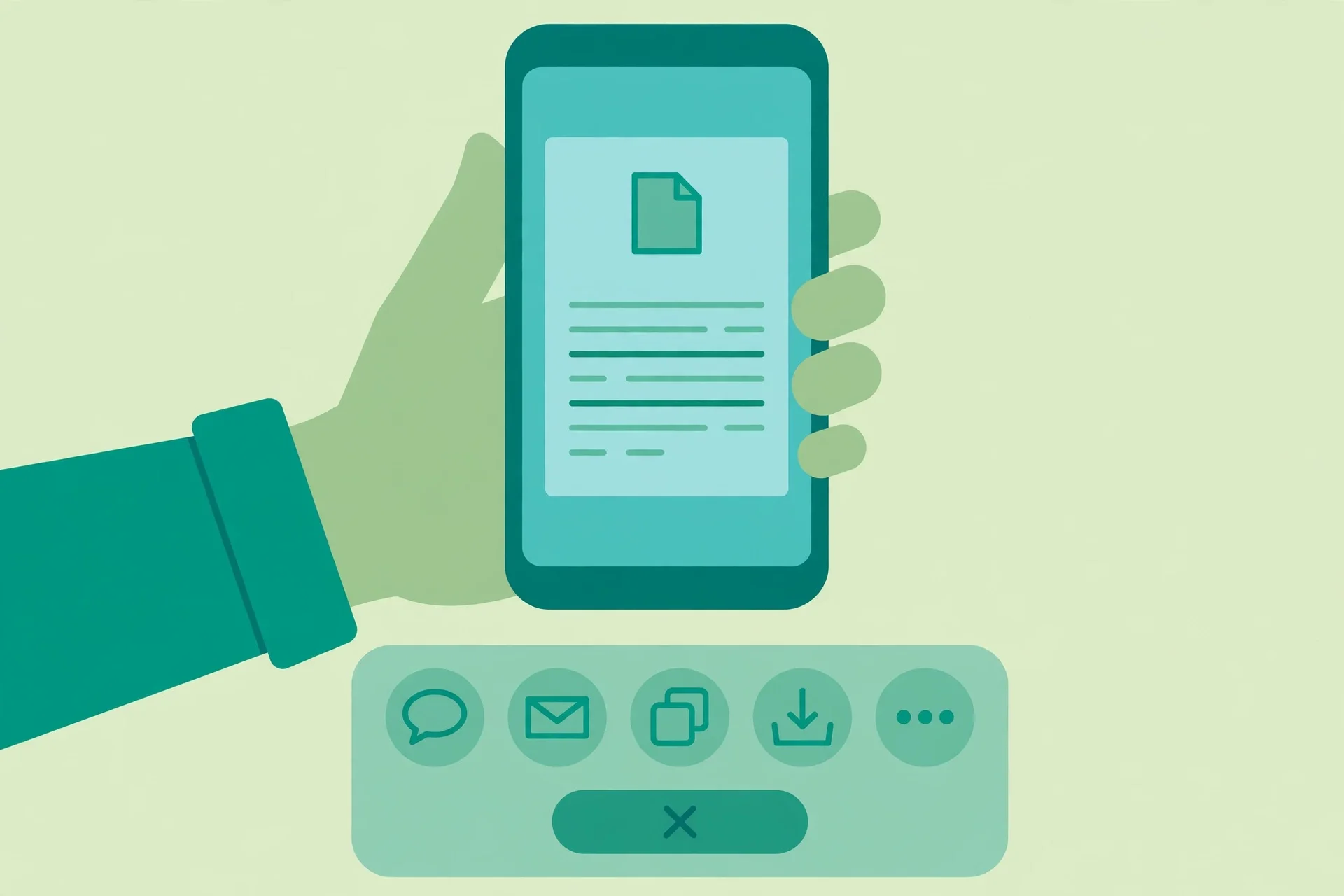
Save one page on Android
On Android, the steps depend on which app opens your PDF, because viewers label the same actions differently. The core flow is the same: open the file, print it, and choose Save as PDF instead of a real printer.
- Open the PDF in your viewer or in Chrome.
- Open the menu and tap Print. In Chrome, tap the three dots menu and choose Print.
- Set the printer to Save as PDF. Tap the printer choice at the top of the print screen and pick Save as PDF.
- Set Pages to the single page you need. Change the page choice from All to a range, then type the one page number.
- Tap the save button and pick a folder. Give the file a clear name so you can find it later.
Android viewers differ in small ways, so do not worry if a label on your phone reads slightly differently. In Chrome the flow is: three-dot menu, Share, Print, printer choice Save as PDF, Pages set to your single page, then the save button. The two choices that must be right are the printer, which must be Save as PDF, and the page choice, which must be your single page. Check the preview before you tap save.
When Print to PDF is not enough
Print to PDF is fast, but it does not copy the page. It re-creates it. Your computer renders the page as a printout and saves that printout as a new file. The text and pictures look the same, but the parts you cannot see often do not survive: clickable links can stop working, bookmarks can vanish, and form fields can turn into plain text you cannot edit.
That loss matters in some jobs and not at all in others. For one recipe page or one page of notes to read, a printed copy is fine. For the signed page of a contract, a page with links a reader must click, or a form page someone must still fill in, a printed copy can quietly break the job.
A splitter works differently. It does not re-print the page. It pulls the page out of the original file and puts it in a new file, so you skip the print step entirely. That is the method to use when the page must stay as close to the original as possible. Adobe's own help for Acrobat extraction notes that extracted pages in Acrobat keep their content, form fields, comments, and links, while bookmarks tied to those pages are not carried over. That is Acrobat's behaviour, not a promise about every splitter. Our own Split PDF page promises text, images and layout unchanged, but says nothing about links, bookmarks or form fields, so no splitter's preservation is promised here. Before you rely on a splitter for a contract or a form, open the extracted page and test its links and fields.
Print to PDF also gets slow when you need several pages, such as pages 2 and 5 together. A splitter pulls them out in one pass. Print to PDF stays the right tool for one quick page. A splitter is the right tool when the page must stay intact, or when you need several pages pulled out cleanly.
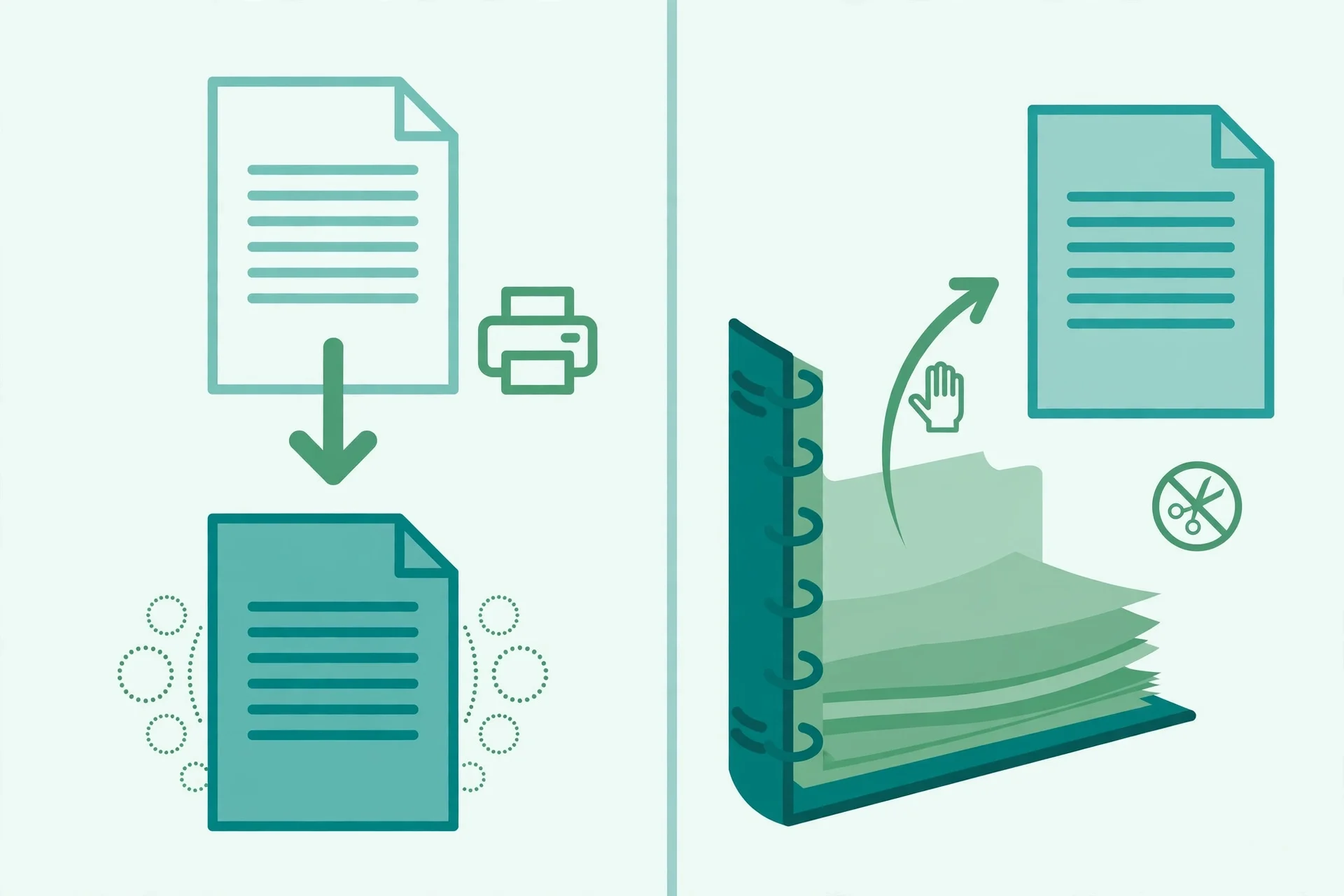
Save one page of a PDF with Split PDF
When you want the page itself rather than a printout of it, use the Split PDF tool on this site. It extracts pages in your browser, with no signup and no watermark, and the tool page states that your file never leaves your browser. That matters most for the files people usually pull single pages from: contracts, statements, and application forms.
- Open the Split PDF tool. Go to the Split PDF page on this site.
- Select your PDF. Choose the file from your computer or phone.
- Enter just the page number. Type the single page you need, for example 7. The tool also accepts ranges and lists, such as 1-3 or 6, when you need more than one page.
- Click Extract pages. The tool builds a new PDF with only the pages you asked for.
- Download the new file and check it. Open it, confirm it holds exactly your page, and test any links or fields before you send it.
Your original file is not changed by any of this. Splitting reads the original and builds a new file from it, so the long document stays whole and the new file holds only your page. Give each download a clear name, so page 7 of the contract and page 7 of the statement do not end up with the same name.
Two related jobs come up often. If you printed a range by mistake and your new file holds extra pages, open the Delete / Rotate PDF Pages tool, remove the pages you do not need, and download the cleaned file. If you pulled several pages and need them back in a new order, use the Merge PDF tool to rebuild one document. Our guide to splitting PDF pages online walks through every split mode with examples.
Common mistakes and fixes
Most one page saves go wrong in the same few ways. Check this table before you send the file.
| Mistake | What goes wrong | Fix |
|---|---|---|
| Using the printed page number | You save the wrong page, off by one or two | Use the page number your reader shows, and check the thumbnail first |
| Leaving Pages on All | You save the whole file again under a new name | Change Pages to Custom and type one number before you save |
| Picking a real printer | Paper prints instead of a file being saved | Set the destination to Save as PDF, or Microsoft Print to PDF on Windows |
| Saving a scanned page and expecting text | The new file holds a picture of the page, not editable text | Use the page as an image, or run OCR on it separately; a splitter cannot turn a scan into text |
| Trusting a printed copy for a form page | Links and form fields stop working in the new file | Extract the page with a splitter instead, then test the links and fields |
| Keeping the default file name | You cannot find the page later among lookalike downloads | Name it for its content, such as contract-signature-page.pdf |
The pattern behind all six is the same: check the page number, check the destination, and check the finished file before you send it.
Frequently asked questions
Can I save one page of a PDF on my phone?
Yes. On iPhone, open the PDF, tap Share, then Print, set the Range to your page, pinch outward on the preview, then tap Share again and choose Save to Files. On Android, tap Print, set the printer to Save as PDF, set Pages to your single page, and save.
Does saving one page lower its quality?
Usually not in any way you can see. Print to PDF keeps the text and pictures close to the original page, and a splitter pulls the page out without re-rendering it. If your saved page looks blurry, the original was likely a low resolution scan, and no save method can add detail it never had.
Can I save pages 2 and 5 only, skipping the rest?
Yes, with a splitter. Enter 2, 5 as your page choice and the tool builds one new file holding exactly those two pages, in that order. Print to PDF can do this too by typing 2, 5 as a custom range, but a splitter is cleaner when the pages are far apart.
Is the original PDF changed when I save one page?
No. Print to PDF creates a brand new file and leaves the original alone. A splitter also reads the original and builds a new file from it, so the long document stays whole.
Can I save a scanned page as editable text?
No, not with the methods in this guide. A scanned page is a picture of text, so saving one page of it gives you a one page picture, not text you can edit. To get editable text from a scan you need OCR software, and its accuracy varies with the quality of the scan.
Do I need to sign up or install anything?
No. Print to PDF is built into Windows, Mac, iPhone, and Android, and the Split PDF tool on this site needs no account and no install.
Try the splitter free
Print to PDF will handle most one page jobs, and it is already on your device. When the page must stay intact, or when you need pages 2 and 5 together, open the free Split PDF tool, enter the pages you need, and download a clean one page file with no signup. Find the page, check the number, pick the right method, and open the finished file before you send it.
How we tested this: we read the Split PDF tool page on this site and confirmed its stated steps: select a PDF, enter pages such as 1-3, 6, or 9-10, click Extract pages, and download the new file, with the tool page stating that files are processed locally and never uploaded. We checked the print steps for computer and phone against public help pages found during research. Phone menu labels vary by app and version, and the Windows Features path above was checked against public Windows help pages rather than on a real device, so if a label on your screen reads differently, follow the printer and page choices, not the exact wording.
Privacy note: the Split PDF tool on this site needs no account and no signup. The tool page states that your file is processed in your browser and never leaves your device, so a contract page or statement page is not uploaded to a server to be split. Print to PDF methods also keep the file on your own device.
Last updated: October 29, 2026