Word Count in Microsoft Word: Every Way to Check It
You are 40 words over the limit, or 200 short, and the deadline is close. Word already counts every word as you type. You just need to know where it hides the number, and which number to trust.
Quick answer
To check the word count in Microsoft Word, look at the status bar at the bottom left of the window, where Word shows the total as you type. For the full breakdown, go to Review, then Word Count, or press Ctrl + Shift + G on Windows or Cmd + Shift + G on Mac. If part of the document is selected, the status bar shows the selected count first, then the total.
See the count in the status bar
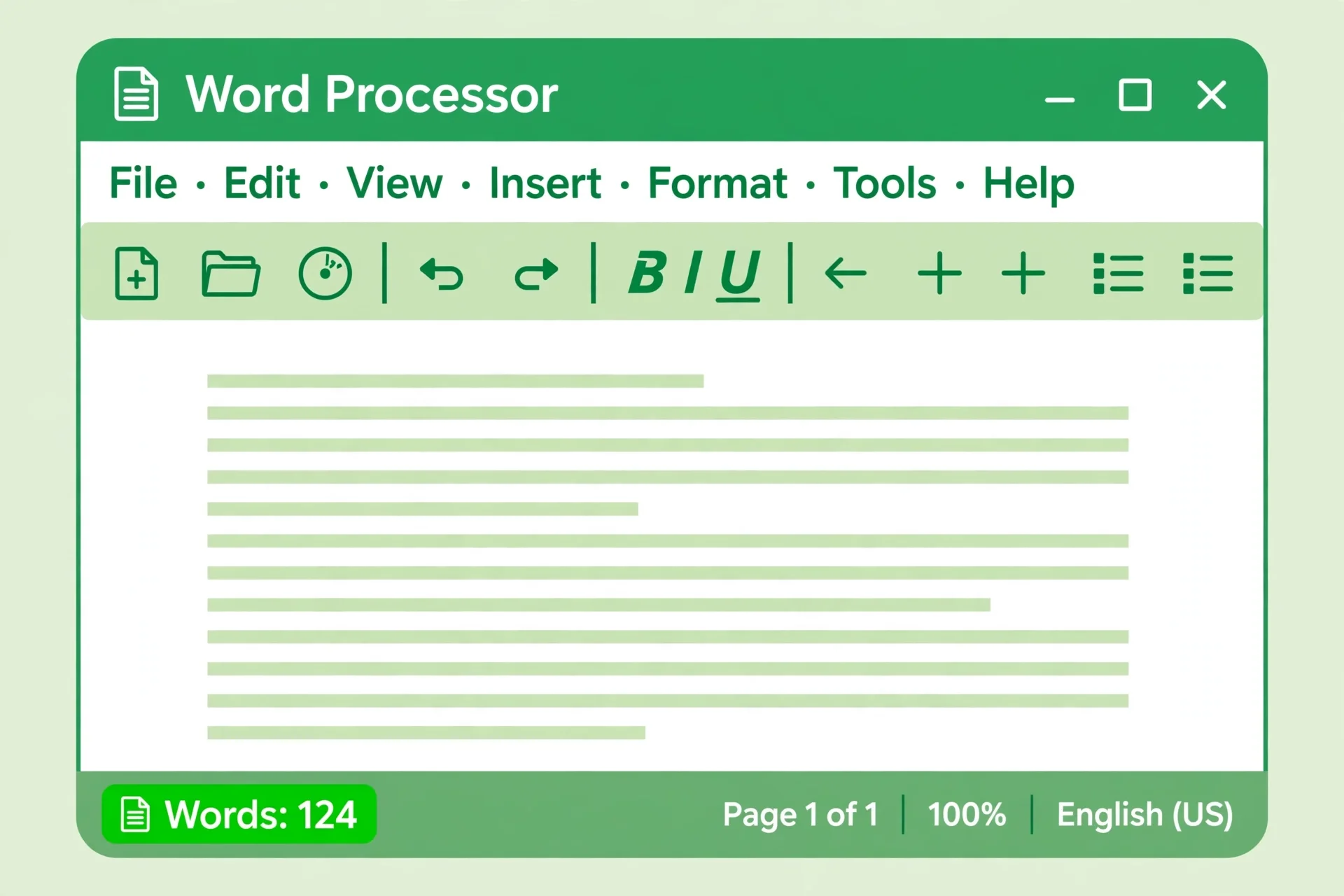
The status bar is the fastest way to check a word count in Microsoft Word, because it is always on screen while you write. Look at the bottom left corner of the window, next to the page number. Word updates that number as you type, so you can watch an essay grow toward a limit without opening any menu.
If the number is not there, it was turned off, not removed. Right click anywhere on the status bar to open its menu, then tick Word Count. The count appears at once, and Word remembers the choice. Microsoft's own Word count help confirms the count sits in the status bar near the lower left corner, and that Review, then Word Count, gives the extra detail.
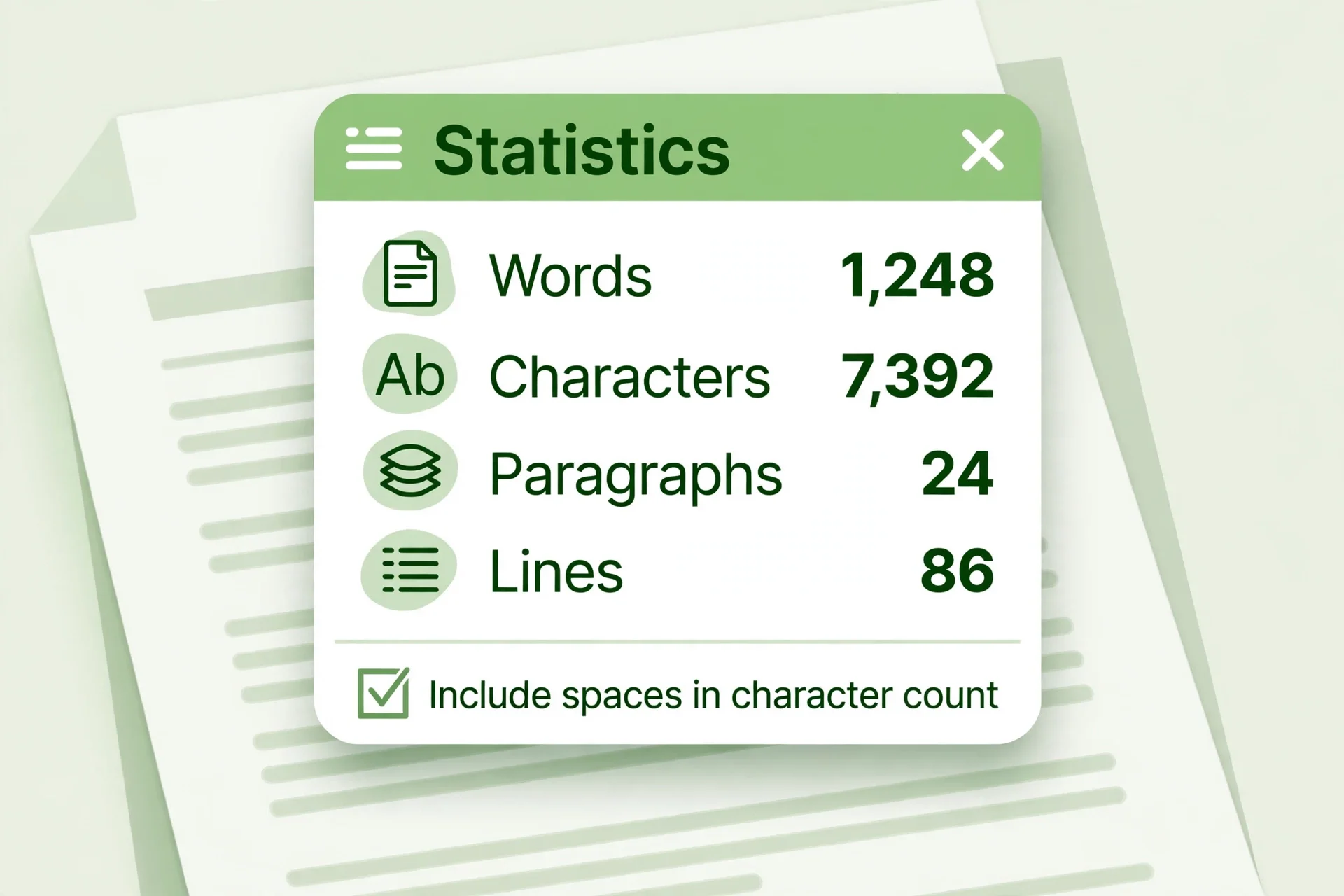
Clicking the status bar number opens the full dialog for characters, paragraphs, and lines.
Open the full Word Count dialog
The status bar gives you one number. The Word Count dialog gives you the whole picture. Open it from the Review tab: click Review in the ribbon, then Word Count in the Proofing group on the left. A small box appears with pages, words, characters with spaces, characters without spaces, paragraphs, and lines.
Words is the headline number, but characters with spaces is the number most online forms and social bios actually check. Our guide to word count vs character count explains which limit applies to essays, posts, and forms.
The dialog also holds the one checkbox that changes your total: Include textboxes, footnotes and endnotes. Leave it in whatever state your assignment needs, and check it before you submit. The next section on footnotes explains why that box deserves a second look.
Use the keyboard shortcut
When you check a count ten times a day, menus get old. The shortcut opens the same Word Count dialog in one move.
- Windows: press Ctrl + Shift + G.
- Mac: press Cmd + Shift + G.
That is the whole trick. The dialog opens over your document, you read the numbers, and you close it and keep writing. If the shortcut does nothing on your machine, another app may have claimed that key combination, or your keyboard layout may remap it. In that case, fall back to Review, then Word Count, which always works, and add the Word Count button to the Quick Access Toolbar by right clicking it in the ribbon and choosing Add to Quick Access Toolbar. One click at the top of the window then opens the dialog from any tab.
For the final check, open the dialog, not just the status bar. It shows the footnote checkbox and the character counts, the two details that cause rejected submissions.
Count only part of a document
Most limits do not apply to the whole file. A journal may cap the abstract at 250 words, a teacher may cap the main essay but not the references, and a client may pay per chapter. Word handles all of that with selection counting, and it is easy once you see the pattern.
- Select the text you want to count. Click and drag over a paragraph, a chapter, or the whole abstract.
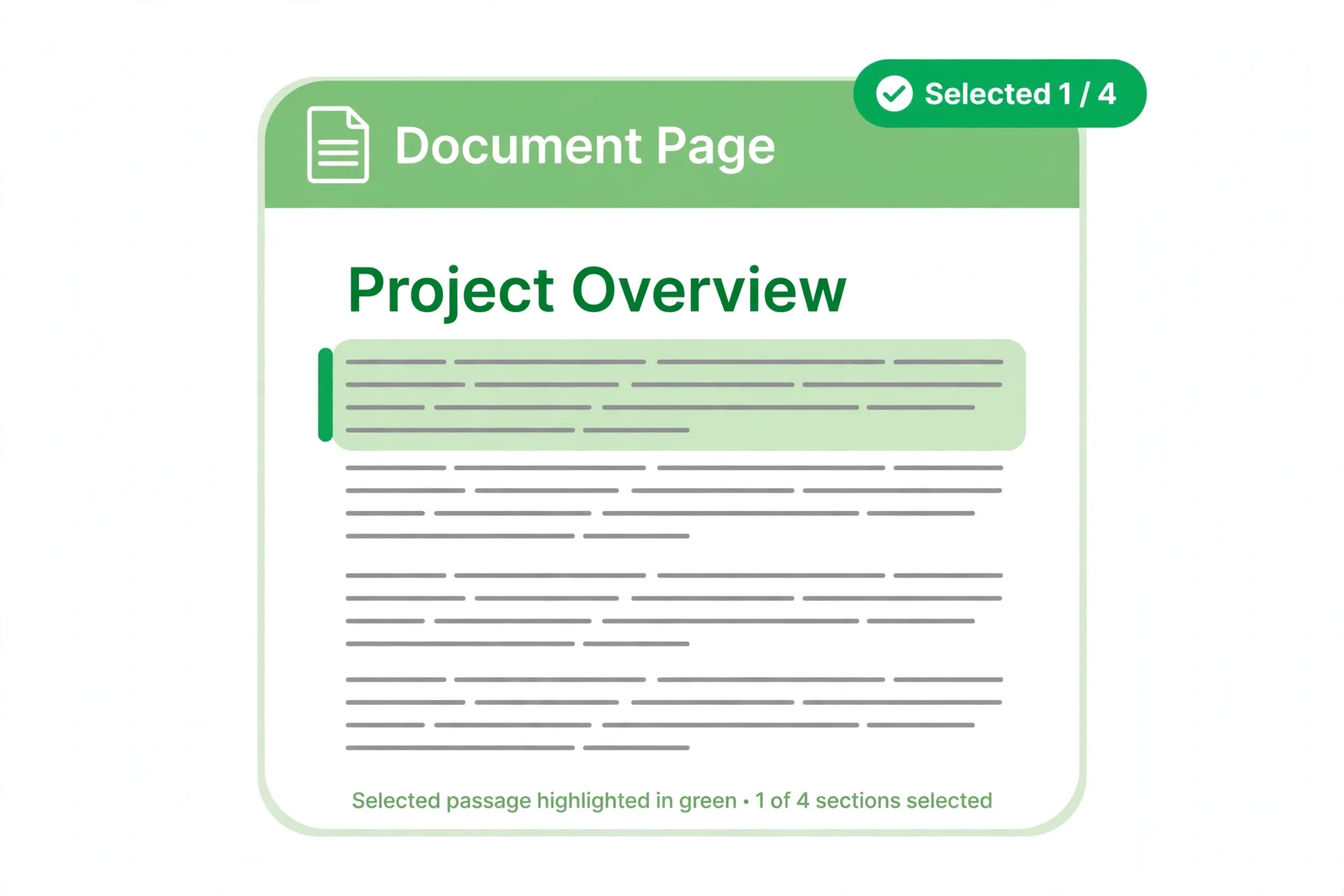
- Look at the status bar. It now shows two numbers, such as 240 of 1,850 words. The first number is your selection. The second is the whole document.
- Open the dialog for detail. With the text still selected, open Review, then Word Count. The dialog reports the selection, not the whole file.
Click anywhere to clear the selection and the status bar returns to the full total. That return trip trips people up: they select a chapter, read the small number, and report it as the document total. If the status bar shows two numbers, you are looking at a selection. Microsoft's guide to counting part of a document states the same rule: select the words, and the status bar shows the selected count.
To exclude references or an appendix, select only the counted sections and note that number. Word cannot count two separate ranges at once, so count each range on its own.
Footnotes, endnotes, and text boxes
This is where good essays lose marks. Word's dialog has a checkbox labelled Include textboxes, footnotes and endnotes. Tick it, and those words join the total. Clear it, and they drop out. The status bar number follows the dialog's setting, so a total you trusted yesterday can change after someone else opens the same dialog and clears the box.
Before you submit anything with a word limit, open Review, then Word Count, and look at that checkbox first. Then read your assignment rules. Some courses count footnotes, some exclude them, and legal filings often have their own list of included and excluded parts. There is no single right setting, only the setting your reader asked for.
Text boxes cause the same surprise. A caption in a text box is not body text, but it joins the total when the box is ticked. If your count jumps for no clear reason, check the checkbox first, then look for a stray text box holding an old draft.
One more caution: words in headers and footers sit outside the main count in the usual view. If your limit is meant to include a header title, select that header text and check it separately.
Character count with and without spaces
Some limits are character limits, not word limits. A bio, a form field, and a post caption all measure characters, and spaces decide the result. Word's dialog reports both versions side by side: Characters (no spaces) and Characters (with spaces). Use the version your form asks for, and never guess which one it means. If the form just says "characters", try the with-spaces count first, since that is how most forms measure typed text, then check the form's own counter if it has one. If your limit is in characters but your draft is measured in words, or the other way round, our guide on characters vs words explains which count each kind of limit uses and how spaces change the number.
You can also watch characters live. Right click the status bar and tick Character Count (with spaces), and the count joins the word count at the bottom of the window. That live character count is the one to watch while trimming a bio or a caption to fit. Microsoft's character count help confirms both routes: the dialog for the full breakdown, and the status bar menu for the live count.
If you need both counts at once, the free Character Counter on this site shows characters with and without spaces as you type. Paste the same text there as a cross-check when a form rejects your entry.
Word for Mac and Word for the web
Word for Mac shows the same status bar count at the bottom of the window, and clicking it opens the same dialog. The menu route differs slightly: on a Mac you can also choose Tools, then Word Count, from the menu bar at the top of the screen. The Mac shortcut is Cmd + Shift + G. If the count is missing from the status bar on a Mac, Control-click the status bar and tick Word Count, just as on Windows.
Word for the web, the free browser version, also shows a word count in the status bar, and Review, then Word Count, opens its count view. For everyday checks it is enough. For a submission where the footnote checkbox or an exact character breakdown decides the result, open the file in the desktop app and run the final check there, where the full dialog is at your disposal.
Very old Word put Word Count under Tools instead of Review. If your ribbon has no Review tab, look under Tools.
Common mistakes and fixes
The count is missing from the status bar. Right click the status bar and tick Word Count. If the whole status bar is hidden, it may have been turned off in the View settings on your version. Turn it back on, then tick Word Count in its menu.
The number looks too small. You probably have text selected, so the status bar shows the selection first. Click anywhere to clear the selection and read the full total. If the number is still small, open the dialog and check the footnotes checkbox, since unticked footnotes and text boxes can hide hundreds of words.
The number looks too big. Open the dialog and check the same checkbox in the other direction. A ticked box pulls footnotes, endnotes, and text box text into the total. Also check for a hidden draft: a text box holding an old paragraph, or a pasted section at the end of the file past the part you meant to submit.
The shortcut does nothing. Use Review, then Word Count, instead. Another app, a keyboard layout, or a custom Word shortcut may own Ctrl + Shift + G on your machine. Adding Word Count to the Quick Access Toolbar gives you a one-click route that never depends on the keyboard.
Two people report different totals for the same file. Compare the dialog checkbox first, then compare selections. Agree on the setting, and both totals will match.
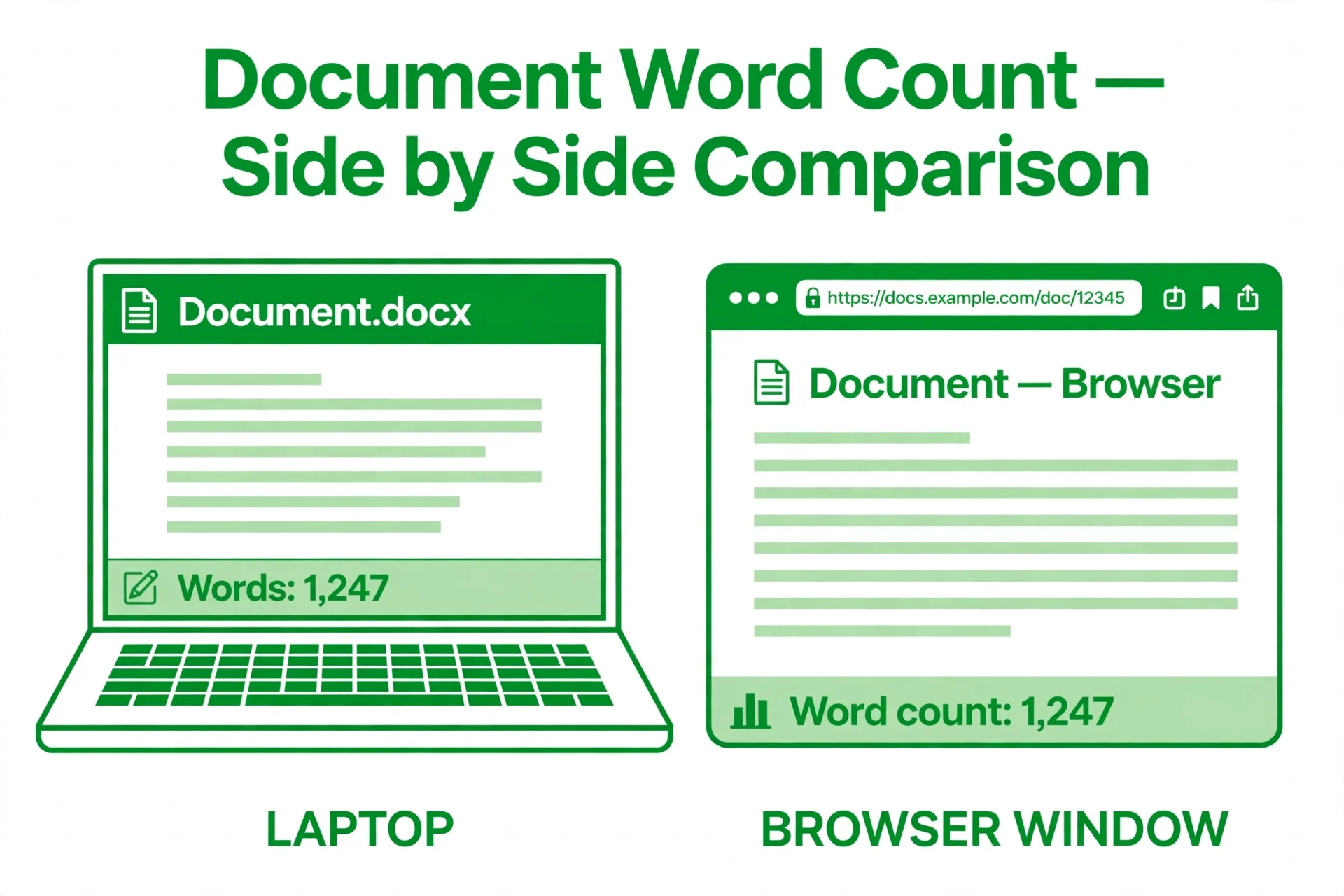
Word and Google Docs disagree. They count differently, and that is normal. Our guide to the Google Docs word count covers where Docs puts its counter and what it leaves out.
What Word does not count
Word's dialog is strong on words, characters, paragraphs, and lines, but it stops there. It does not tell you how many sentences you wrote, how long the text takes to read aloud, or how long a speech version would run. A 1,000 word essay reads differently from a 1,000 word script, and a teacher or an editor may care about reading time as much as length.
That gap is where a second counter earns its place. Paste the same text into the free Word Counter on this site and you get sentences, paragraphs, and lines plus reading time, updating live as you type, with no signup. Use Word for the official total, and the counter for pacing and talk length.
The same pairing helps with PDFs. If your text arrives as a PDF, our guide to counting words in a PDF shows three free ways to get a count without retyping.
Frequently asked questions
What is the shortcut for word count in Microsoft Word?
Press Ctrl + Shift + G on Windows or Cmd + Shift + G on Mac to open the Word Count dialog. The dialog shows pages, words, characters with and without spaces, paragraphs, and lines. If the shortcut does nothing, use Review, then Word Count, or add Word Count to the Quick Access Toolbar.
Why is the word count missing from the status bar?
The Word Count item was turned off in the status bar menu. Right click anywhere on the status bar at the bottom of the window and tick Word Count. The total appears at once and updates as you type. Clicking that number opens the full Word Count dialog for extra detail.
Do footnotes count in the Word word count?
It depends on the dialog checkbox. Open Review, then Word Count, and look for Include textboxes, footnotes and endnotes. Tick it to include footnotes, endnotes, and text box text in the total, or clear it to leave them out. Always set it to match your assignment rules before you submit.
How do I count words in only part of a document?
Select the text first, then look at the status bar. It shows two numbers, such as 240 of 1,850 words, where the first number is your selection and the second is the whole document. Opening Review, then Word Count, with the text still selected reports the selection in full detail.
Does Word count characters too?
Yes. The Word Count dialog shows characters with spaces and characters without spaces, for the whole document or for a selection. You can also right click the status bar and tick Character Count (with spaces) to watch the character count live while you type.
Can I check word count in Word for the web?
Yes. Word for the web shows a word count in the status bar, and Review, then Word Count, opens its count view. For everyday checks that is enough. For a submission where the footnote checkbox or an exact character breakdown matters, run the final check in the desktop app.
Try the free counter
Word already gives you the official number: the status bar for a glance, the shortcut for a fast check, the dialog for the full breakdown, and the selection trick for part of a document. Set the footnotes checkbox to match your rules, and your total will stop surprising you.
When you need the numbers Word never shows, open the free Word Counter, paste your text, and read sentences, paragraphs, and reading time as you type, with no signup. Use Word for the total your reader checks, and the counter for everything around it.
How we tested this: we checked the status bar, dialog, shortcut, selection count, footnote checkbox, and character count steps against Microsoft's public Word support pages found during research, and we read the Word Counter tool page on this site to confirm it shows sentences, paragraphs, lines, and reading time live as you type. Menu labels vary slightly by Word version, so if a label on your screen reads differently, follow the status bar and Review tab routes, not the exact wording.
Privacy note: Word counts your document on your own device, and the Word Counter on this site needs no account and no signup. The tool page states that your text is processed in your browser and never uploaded or stored, so a draft essay or a client document is not sent to a server to be counted.
Last updated: November 5, 2026