How to Compress PDF Online Free
Need to compress PDF online free and shrink a file that is too big to email or upload? This guide shows you how to reduce PDF file size in seconds, right in your browser, with no signup, no watermark, and no software to install.
Key takeaways
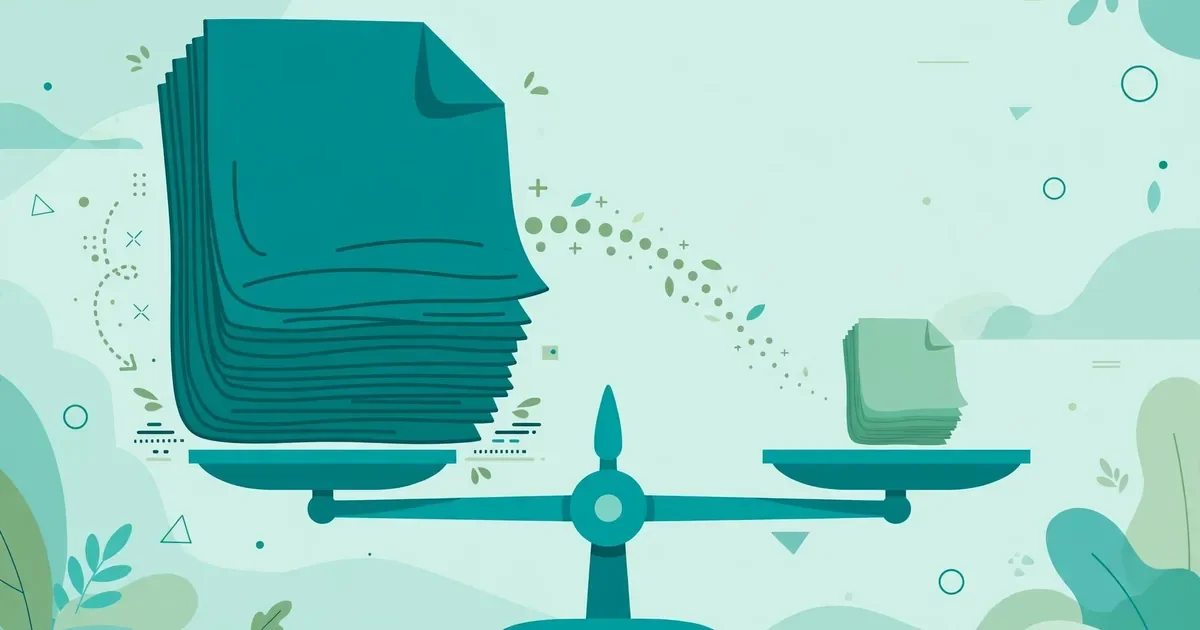
- Large PDFs usually come from images, scans and embedded fonts.
- Compression shrinks size by rebuilding pages at a smaller size.
- Always keep the original — heavy compression cannot be undone.
- Check readability after compressing, especially for print.
Why PDFs get so large
Ever tried emailing a 40 MB portfolio? The upload stalls. The email bounces. Annoying, right? You have probably been there. Compression is the fix — same document, a fraction of the size.
A PDF can grow surprisingly large, even when the document itself looks simple. The most common cause is images. Scanned pages, phone photos of documents, screenshots, and design files are often saved at high resolution, and each one adds weight to the file. A ten-page report with a few full-page photos can easily pass 25 MB, which is over the attachment limit of many email services. Embedded fonts, layered graphics, and uncompressed image data add still more bulk, especially in files exported from design software or scanned at 300 DPI or higher.
Large files cause real problems. Email providers reject attachments above their limits, job portals and university forms refuse uploads, and messaging apps stall or fail on big documents. Sharing a heavy PDF also wastes mobile data and slows down everyone who opens it. Compression solves all of this by rebuilding the document at a smaller size: images are resized and re-encoded more efficiently, redundant data is removed, and the result is a lighter file that still looks like the original. The goal is not to strip the document down to nothing, but to remove the invisible waste that makes it heavy. A well-compressed PDF opens, sends, and uploads faster — a skill worth having whether you handle homework, invoices, CVs, or contracts.
How to compress a PDF online, step by step
- Open the free PDF compressor. Go to the Compress PDF tool in your browser. There is nothing to install and no account to create — the tool works on desktop and mobile alike.
- Choose your PDF file. Select the file from your device or drag and drop it into the upload area. If you are unsure which copy is the heavy one, check file sizes first and pick the largest version.
- Pick your compression level. Choose a lighter setting when the document is mostly text, and a stronger setting when it is full of photos or scans. A medium setting is the best starting point for most files.
- Run the compression. Click the compress button and wait a moment while the pages are rebuilt in your browser. Larger files and photo-heavy documents take a little longer, so keep the tab open until it finishes.
- Download the smaller file. Save the compressed PDF and compare its size with the original. If the result is still too big for your upload limit, run it through the tool once more at a stronger setting.
- Check the quality before you send it. Open the compressed file and scroll through the pages, zooming in on images, tables, and small text. If everything looks sharp and readable, the file is ready to email, upload, or share.
How much smaller can a PDF get?
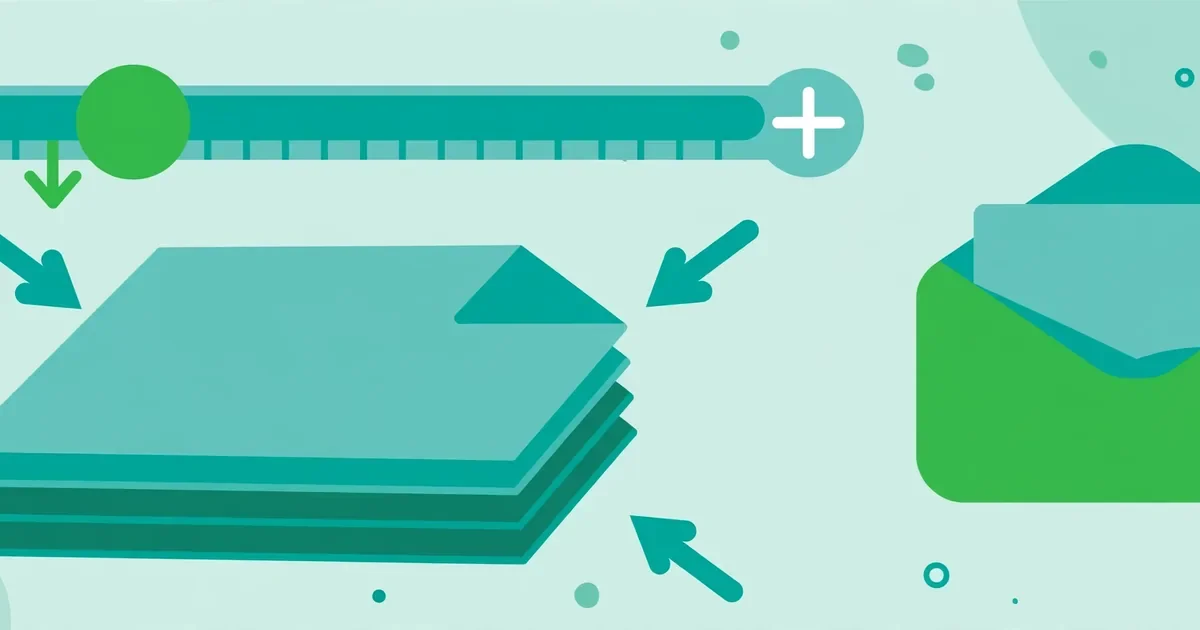
There is no single answer, because the result depends on what is inside the file. Text-only PDFs are already small, so compression may only shave off a modest amount — perhaps ten to thirty percent. Scanned documents and image-heavy PDFs, on the other hand, often shrink by fifty to eighty percent or more, because their pages are essentially large pictures. A 40 MB scan can realistically become 8 MB, and a 12 MB photo report can drop to 3 MB, while still looking perfectly readable on screen and in print.
Compression level matters too. A gentle setting keeps images crisp and is ideal for documents you plan to print, such as portfolios and certificates. A stronger setting produces a much smaller file and is better for quick sharing, form uploads, and email, where a slightly softer image is acceptable. The smart approach is to start in the middle, check the result, and only push further if the file is still over your size limit. If a document has to meet a specific limit, such as a 5 MB or 10 MB upload cap, compress, check the size, and repeat once at a stronger setting rather than jumping straight to the maximum. For the exact sizes for email and forms, our guide walks through the target-size settings step by step.
Tips for the best compression results
- Keep your original. Always save a copy of the uncompressed file before you compress, so you can go back if you ever need the full-quality version for printing.
- Compress before you merge. If you plan to combine several PDFs, compress the heavy ones first, then merge them. Our guide on how to merge PDF files online free walks through the combining step.
- Split out what you do not need. A file that is half appendix or blank pages will never compress well. Remove extra pages first — see Split PDF or our guide on how to split PDF pages online free — and then compress what remains.
- Match the setting to the audience. Use light compression for files people will print, and stronger compression for files people will only read on screen.
- Check fine print and signatures. Small text, stamps, and handwritten signatures are the first things to suffer from aggressive compression, so zoom in on them before sending.
- Scan at a sensible resolution. If you control the scan, 150 to 200 DPI is usually plenty for documents that will be shared digitally, and it keeps files far smaller from the start.
- Watch the file name. Save the compressed copy with a clear name, such as “report-compressed.pdf,” so you never confuse it with the original.
- Test the upload early. If a portal has a size limit, compress and try the upload well before the deadline, so you have time for a second pass if needed.
Online compression vs desktop software
Desktop programs such as Adobe Acrobat offer powerful compression controls, and they are a good choice for professionals who compress files all day. For most people, though, an online PDF compressor free tool is faster and simpler. There is nothing to install, nothing to update, and no licence to pay for. You open the tool, compress the file, and move on. That matters when you are on a borrowed computer, a tablet, or a phone, where installing software is inconvenient or impossible.
The other advantage of a browser-based tool is privacy. On this site, compression happens locally in your browser tab, so your document never travels to a server. That is an important difference from many online tools, which upload your file to process it remotely. Local processing is the safer choice for CVs, contracts, medical forms, and financial documents. The trade-off is that desktop software sometimes offers finer controls, such as per-image settings and batch processing of hundreds of files. If you need those, a desktop program may be worth it. For the everyday job — one file, one size limit, one deadline — the free online tool wins on speed, simplicity, and privacy.
| Option | Cost | Setup | Privacy | Best for |
|---|---|---|---|---|
| Free online compressor | Free | None, works in browser | Files stay on your device | Quick one-off compression |
| Desktop software | Often paid | Install and updates | Local, but app-dependent | Batch jobs, fine controls |
| Server-based online tools | Free or freemium | None | Files uploaded to a server | Occasional use, low privacy needs |
Common mistakes to avoid
- Compressing the only copy. If you overwrite the original with a heavily compressed version, you cannot recover the lost quality. Keep the original somewhere safe.
- Using maximum compression for print files. A portfolio or certificate that will be printed deserves a gentle setting. Over-compression shows up as blurry images and blocky gradients on paper.
- Ignoring the upload limit. Guessing is a waste of time. Check the exact limit — 2 MB, 5 MB, 10 MB, or 25 MB — and compress to fit it with a little room to spare.
- Compressing after every edit. Each round of compression can degrade images further. Edit first, compress once, and only re-compress if the file is still too large.
- Sending without a visual check. Always open the compressed file and skim it. A two-minute check catches broken pages, missing fonts, or unreadable stamps before your recipient does.
Also useful: If only a few pages are making the file huge, see how to split PDF pages online free.
Quick checklist
Run through this checklist before you finish:
- Original backed up before compressing.
- Compression level matched to the use (email vs print).
- Compressed file opened and text checked.
- File size confirmed small enough to send.
- Images still readable, not blurry.
Related: see how to split PDF pages online free.
Frequently asked questions
Is it really free to compress a PDF online?
Yes. The PDF compressor free tool on this site works without an account, payment, or watermark. You can compress as many files as you need, and the processing happens in your browser.
Will compressing a PDF reduce its quality?
It can, but only as much as you allow. Light compression keeps text and images looking nearly identical to the original. Stronger compression saves more space by lowering image resolution, which may make photos look slightly softer. For most documents, a medium setting gives you a much smaller file with no visible difference.
How much smaller will my PDF get?
It depends on the content. Text-only PDFs may shrink by ten to thirty percent, while scanned and image-heavy PDFs often shrink by fifty to eighty percent. The best way to find out is to compress your file and compare the before-and-after sizes.
Are my files uploaded to a server when I compress them?
No. On this site, your PDF is processed locally in your browser tab. It is never uploaded, stored, or seen by anyone else, which makes the tool safe for private documents such as CVs and contracts.
Can I compress a PDF to fit an email attachment limit?
Yes — that is one of the most common uses. Most email services cap attachments at 20 to 25 MB. Compress your PDF, check the new size, and if it is still over the limit, run it once more at a stronger setting or split out pages you do not need.
Conclusion
Compressing a PDF does not have to be complicated. Open the tool, upload your file, pick a sensible setting, and download a lighter version that is ready to send. Keep your original safe, check the compressed result before sharing, and remember that compressing first and merging second gives the smallest final file. If you also need to combine documents, see our guide on Merge PDF. Ready to shrink your file? Compress your PDF free now — it takes less than a minute.