Compress a PDF to 100KB, 200KB or 1MB: Exact Sizes for Email & Forms
The form says "maximum 200 KB" and your scan is 3.4 MB. Guessing at a compression slider and re-uploading five times wastes your evening. This guide shows you how to compress a PDF to an exact size, what each target costs in quality, and what to do when a file refuses to shrink far enough.
Quick answer
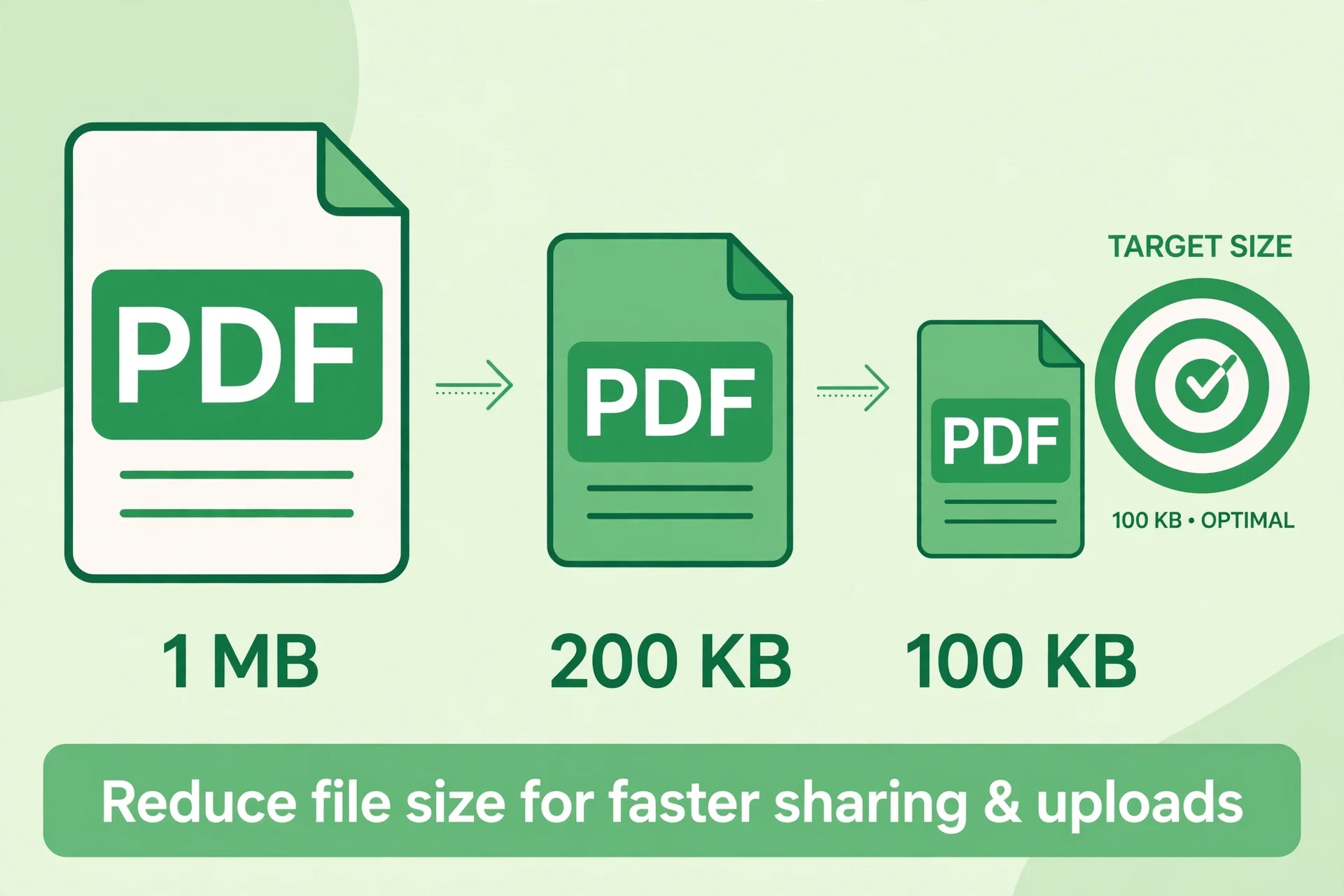
To compress a PDF to 100KB, 200KB, 500KB or 1MB, open the free Compress PDF tool, pick your file, choose the target size from the Target size menu, and click Compress PDF. The tool keeps strengthening compression on its own until the file fits your target, or reaches the smallest size it can make. Then check the result at full size before you send it: tiny targets can soften small print.
Which target size do you actually need?
Pick the target from the limit you were given, not from a guess. A form that says "under 200 KB" means 200 KB, and a file at 203 KB gets rejected just like one at 3 MB. Read the limit on the form or in the rejection message first, then aim slightly below it. A file at 195 KB passes a 200 KB limit with room to spare. A file at exactly 200 KB can fail if the form counts sizes differently.
The common limits fall into a pattern. Email is generous: personal Gmail accounts allow attachments up to 25 MB in total, according to Google's own help page, so email rarely needs an exact-size target. Job portals, university admissions and government forms are stricter. They commonly ask for files under 1 MB, 500 KB or 200 KB, and some certificate uploads cap at 100 KB. Chat apps sit in between: a document that must travel over a slow connection is easier to send at 500 KB than at 5 MB.
| Where you are sending it | Sensible target | Why |
|---|---|---|
| Certificate or document upload with a stated cap | The stated cap, or one step below it | The form checks the number, not how nice the file looks |
| Email attachment | Under 1 MB when you can, under 25 MB at most | Small files send fast and never trip the provider limit |
| Chat or mobile upload | Under 500 KB | Slow connections and data caps punish big files |
| Archive or print | Do not chase a tiny target | Keep quality; size only matters when a limit forces it |
One warning before you pick 100 KB for everything: the smaller the target, the harder the tool must squeeze. A one-page certificate compresses to 100 KB and still reads fine. A 40-page scanned report squeezed to 100 KB may turn its small print into a blur. Match the target to the document, and use the quality notes later in this guide to judge what is realistic.
How to compress a PDF to an exact size in 4 steps
The tool on this site has a target size option built in, so you do not need to guess a quality percentage and hope. It tries progressively stronger compression until the file fits, which is exactly the loop you would otherwise do by hand.
- Open the Compress PDF tool and pick your file. Go to the free Compress PDF tool and select the PDF you need to shrink. Keep your original file safe: work on a copy, or keep the original somewhere you can find it again.
- Choose your target size. In the Target size menu, pick Under 100 KB, Under 200 KB, Under 500 KB or Under 1 MB. A chosen target overrides the compression level, so you do not need to touch the quality slider as well.
- Click Compress PDF and wait for the rebuild. The tool rebuilds each page at a smaller size, strengthening compression until the file fits your target. Larger scanned files take longer, so give a 50-page scan a minute rather than clicking twice.
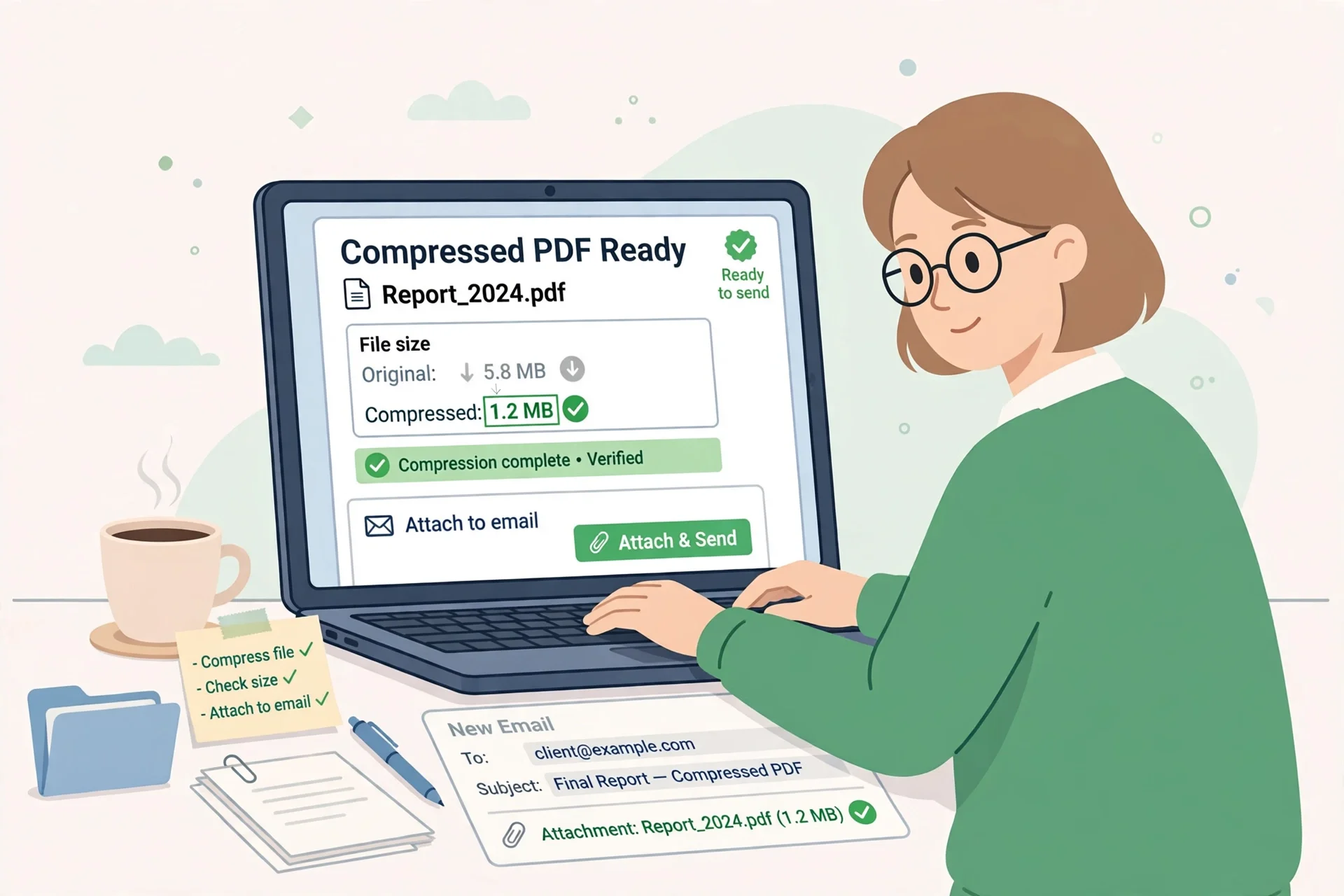
- Check the before and after sizes, then open the result. The tool shows both sizes when it finishes. Download the file, open it, and check a few pages at full size: headings crisp, small print readable, photos acceptable. Only send it once it passes that check.
That last step is the one people skip, and it is the one that matters most. A file can hit 100 KB and still be useless if the signature line turned to mush. The size number is not the goal. A readable file under the limit is the goal.
What each target costs in quality
Compression shrinks a PDF mostly by rebuilding its images smaller. Text-heavy PDFs made in Word or Google Docs compress well because their pages are mostly text and simple graphics. Scanned PDFs are harder: every page is one big photo, so shrinking means lowering the resolution of that photo. That is why two files of the same starting size can end up looking very different at the same target.
Under 1 MB: the safe target for most files
Almost any normal document reaches 1 MB without visible damage. A multi-page report, a CV with a photo, a form with a logo: all of these survive fine. If no form forces a smaller number on you, stop here. You get a file that sends anywhere and still looks like the original.
Under 500 KB: fine for scans, check the small print
Scanned pages at 500 KB usually stay readable, including most handwriting and stamps. This is a good target for emailing a scanned form or uploading a document to a portal with a 500 KB cap. Zoom into the smallest text on one page before sending. If it holds up at full size, the whole file is fine.
Under 200 KB: expect soft photos, protect the text
At 200 KB the tool is working hard. Text on clean white pages normally survives, but photos get soft and coloured backgrounds can band or blotch. This target suits certificates, ID pages and single-page letters far better than photo-heavy reports. If your file is a certificate, 200 KB is a comfortable target. If it is a brochure, think twice.
Under 100 KB: only for simple pages
One hundred kilobytes is a strict target. A one-page certificate, a single scanned letter, or a short text document can reach it and stay readable. A long or image-heavy file forced to 100 KB will lose detail somewhere, and the loss lands on the smallest text first. When a form demands 100 KB, accept that trade and check the result page by page. When no form demands it, do not use it.
There is one more honest limitation to know before you compress anything here. Because this tool rebuilds each page as an image, the text in the compressed file becomes part of the picture: it stays perfectly readable, but you can no longer select or copy it. If you need selectable text later, keep your uncompressed original as the master file and send only the compressed copy.
When a PDF cannot reach your target
Sometimes the tool returns the smallest version it can make, and that version is still over your target. That is not a bug. Every file has a floor: a minimum size below which the pages cannot go without becoming unreadable. A 60-page scanned report cannot become a readable 100 KB file, because 60 pages of text simply need more room than that.
When you hit the floor, change the document instead of squeezing harder. Split the file into two parts with the Split PDF tool and send each part separately, if the form allows more than one upload. Remove pages you do not need with the Delete / Rotate PDF Pages tool: cover sheets, blank pages and duplicate scans add size for nothing. Our guide to removing blank pages from a PDF covers the blank-page check in detail.
Another useful trick is to compress in two passes. Run the file once at a moderate target, then run the compressed result again at your final target. The second pass starts from a smaller file and sometimes squeezes out the last few kilobytes. Check quality again after the second pass, because each rebuild softens images a little more.
If none of that gets you under the limit, ask whether the limit is really fixed. Some portals accept a cloud link or a second upload slot. Some forms state a limit per file but accept several files. And some "maximum 200 KB" messages turn out to be per-page limits, not per-file limits. Read the form's own wording before you spend another hour shrinking a file that was never the problem.
Common mistakes and fixes
Most exact-size failures come from the same few habits. Fix the habit and the target gets easier.
| Mistake | What goes wrong | Fix |
|---|---|---|
| Aiming for exactly the cap | A file at 200.4 KB fails a 200 KB limit | Pick one step below the cap, or leave a few KB of margin |
| Compressing the only copy | You lose selectable text and the original quality | Keep the original; send only the compressed copy |
| Skipping the visual check | Small print turns to blur unnoticed | Open the result and zoom into the smallest text on two or three pages |
| Forcing 100 KB on a long scan | The file hits the floor and still fails, or becomes unreadable | Split the file, remove blank pages, or accept a larger target |
| Re-compressing again and again | Each pass softens images a little more | Two passes at most, then change the document instead |
| Forgetting the file was scanned | Text-based tricks do nothing for photo pages | Expect scans to need more room, and judge quality by the scan, not the text |
The pattern behind all six is the same: treat the size as a means, not as the goal. The goal is a file the other side can open, read and accept. A 198 KB file that reads clearly beats a 99 KB file that does not, even when the form would accept both.
Frequently asked questions
How do I compress a PDF to exactly 100KB?
Open the free Compress PDF tool, select your file, and choose Under 100 KB in the Target size menu. The tool keeps strengthening compression until the file fits or reaches the smallest size it can make. Simple one-page files usually reach 100 KB fine; long scanned files may not, and then splitting the file or removing pages helps.
How do I compress a PDF to 200KB for a form upload?
Pick Under 200 KB as your target size in the Compress PDF tool, download the result, and check the small print at full size before uploading. Aim slightly below the cap rather than exactly at it, because a file a few KB over the limit still gets rejected. Certificates and single-page letters reach 200 KB comfortably.
How can I reduce a PDF to 1MB without losing quality?
Choose Under 1 MB as your target. Most normal documents reach 1 MB with no visible loss, because the tool only needs moderate compression at that size. Text-heavy files fare best, and scanned pages should still read clearly. Open the result and check two or three pages at full size before you send it.
Why is my PDF still too big after compression?
Every file has a minimum size, and scanned or photo-heavy files hit that floor sooner than text files. If the tool returns its smallest version and it is still over your target, split the file into parts, remove blank or unneeded pages, or run a second pass. If the limit is per page rather than per file, check the form wording.
Will compressing a PDF to 100KB make it blurry?
It can, especially for scans and photos. Text on clean pages usually survives, but small print is the first thing to soften at strict targets. Always open the compressed file and zoom into the smallest text before sending. If it is unreadable, use a larger target or split the document instead of forcing the size.
Does compressing a PDF remove its text?
On this site, compression rebuilds each page as an image, so the text stays readable but can no longer be selected or copied. That is the trade for reaching small targets. Keep your original file as the master copy whenever you need selectable text later, and send only the compressed version.
Try the exact-size tool free
Stop re-uploading the same file and hoping. Open the free Compress PDF tool, pick your target size, and check the result once before you send it. If your form demands 200 KB, you now know what that target costs and what to do when a file will not reach it.
How we tested this: we read the Compress PDF tool page on this site and confirmed the Target size menu offers Under 100 KB, Under 200 KB, Under 500 KB and Under 1 MB, that a chosen target overrides the compression level, and that the tool reports before and after sizes when it finishes. We also confirmed from the tool's own description that compression rebuilds each page as an image, which is why text is no longer selectable afterwards. Before sending a real file, open the compressed copy and check its smallest text at full size.
Privacy note: compression on this site runs completely in your browser, so your file is never uploaded to a server. Nothing is stored or logged. Your certificates, CVs and scanned records stay on your device while they shrink.
Last updated: October 25, 2026
Related tools and guides
Your PDF Is Too Big to Email? 5 Fixes That Actually Work
Email rejected your file? Five fixes beyond compression.
Read article →