Merge PDFs on Windows: 3 Free Ways That Work
Your professor wants one PDF, not four. Your CV, your certificates, and your cover letter are sitting in Downloads as separate files, and the application form has one upload button. Windows will not help you here. Windows 10 and Windows 11 have no built-in way to merge PDFs at all. Edge can open a PDF, and Microsoft Print to PDF can make one, but neither can join two files into one. The good news is you still do not need to pay for Adobe. A browser tool does it in about a minute, a free desktop app does it offline, and a free Microsoft app can repeat the job whenever you need it. Here are the three free ways, and which one to pick.
Quick answer
Yes. The fastest free way to merge PDFs on Windows is a browser tool: open the Merge PDF tool, add your files, arrange the order, and click Merge PDFs. For an offline option, install PDFsam Basic, choose Merge, add your files, and click Run. Windows itself has no built-in merge feature, so every method below uses a free tool on top of Windows.
Method 1: the browser method, the fastest way
This is the method to use when you want the merge done in about a minute, with nothing to install and nothing to learn. It works the same on Windows 10 and Windows 11, in Edge and Chrome, and it works on a work laptop where you are not allowed to install software.
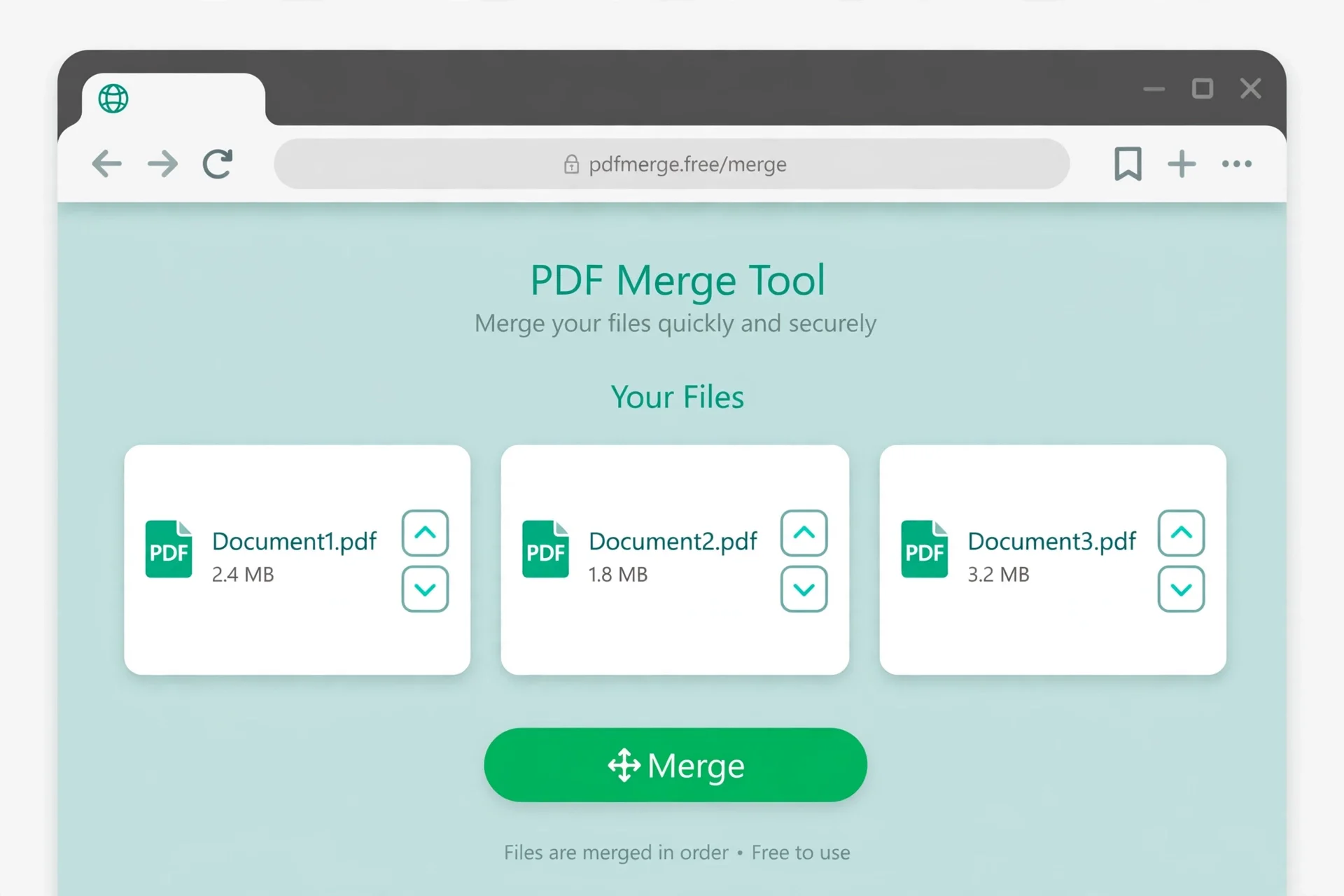
Step 1: Open the merge tool. In Edge or Chrome on your Windows PC, open the free Merge PDF tool. The page loads once and then works in your browser.
Step 2: Add your PDFs. Click the upload area and choose your PDFs, or drag them in from File Explorer. You can add two files or twenty. Click the picker again to add more files later if you forgot one.
Step 3: Arrange the order. Use the up and down arrows next to each file to put them in the order you want. Cover letter first, CV second, certificates last, for a job application. For a visa application, follow the order the embassy asks for, and read our guide to merging PDFs for a visa application before you start.
Step 4: Merge and download. Click Merge PDFs, wait a few seconds, and download the result. The file lands in your Downloads folder. Rename it right away, while you still remember what it is.
The tool on this site processes everything in your browser with pdf-lib, so the files never leave your PC. That matters when the documents are yours: a CV has your address and phone number on it, and a visa file has your passport details. No upload means no copy sitting on a server, no deletion timer to trust, and nothing to leak. Most other free online tools upload a copy to their server, so check before you use one for sensitive files.
Method 2: PDFsam Basic, the free offline app
PDFsam Basic is a free, open-source desktop app for Windows, macOS, and Linux. Its core job is splitting and merging PDFs. It works fully offline, it adds no watermark, and the developer states that the free version has no file-size limit. Because it runs on your PC, it is the best choice when the files are sensitive, or when you merge PDFs often and would rather not open a browser each time.
Step 1: Download and install PDFsam Basic. Get it from the developer's own website, pdfsam.org, and run the installer. The free Basic version is the one you want. A paid Enhanced version exists with editing features, but you do not need it for merging.
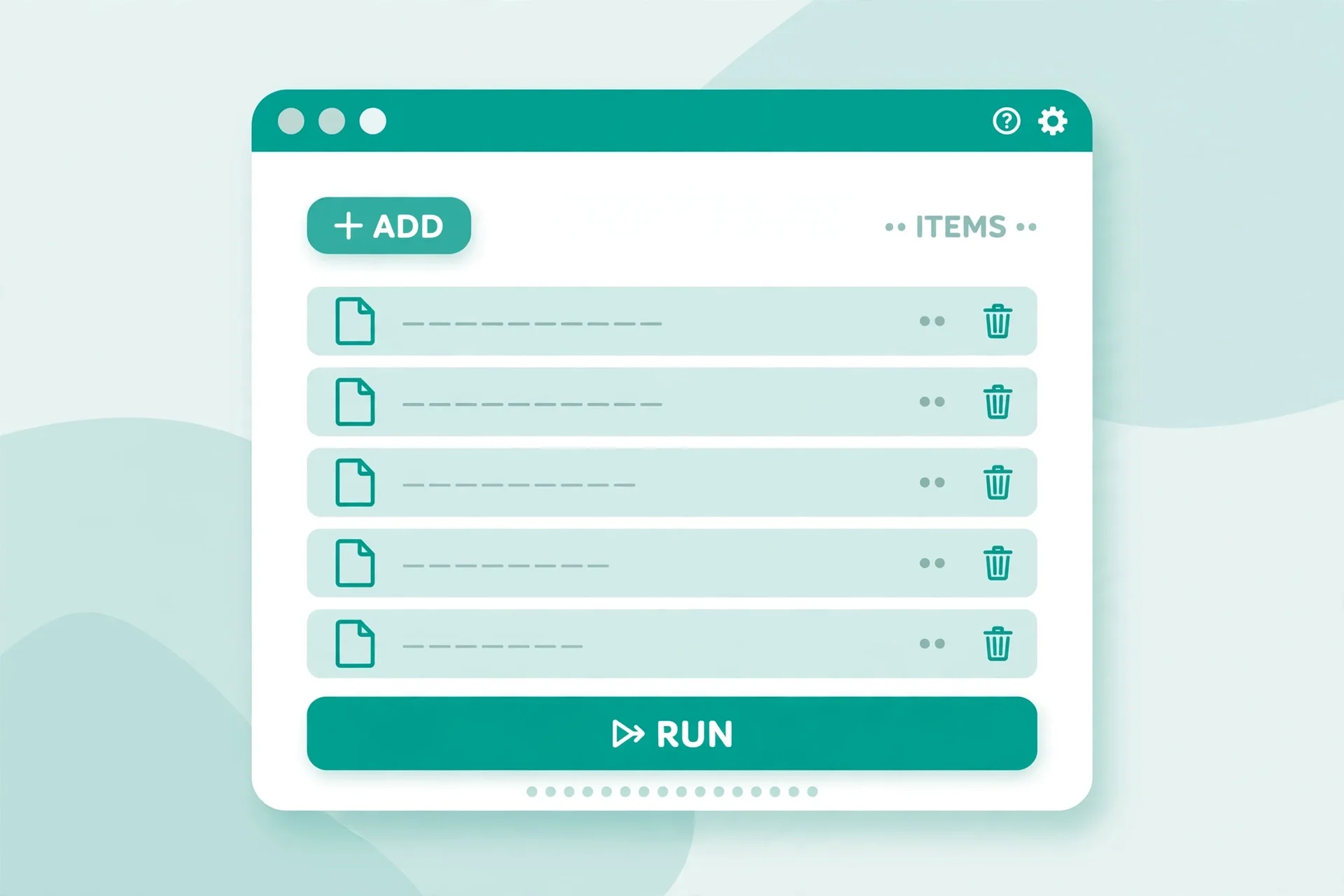
Step 2: Open PDFsam and choose Merge. The home screen lists the modules. Click Merge.
Step 3: Add your PDFs. Click Add file and pick the PDFs you want to join, or drag them in from File Explorer.
Step 4: Arrange the order. Drag the rows into the order you want, or use the move buttons beside the list. Check the order now, because fixing it later means running the merge again.
Step 5: Choose where to save. Under Destination file, pick a folder and a name for the merged PDF, for example "Application - Your Name.pdf". A clear name matters when you attach it to an email or a form.
Step 6: Click Run. PDFsam builds the merged file in seconds and shows a confirmation when it is done. Open the result and scroll through the first page of each section to confirm the order is right.
PDFsam merges whole files. If you need only some pages from a file, use its Split module first to pull out the pages you want, then merge the results. The Split PDF tool on this site does the same job in your browser if you would rather not install anything.
Method 3: Power Automate Desktop, the repeatable way
Power Automate Desktop is a free Microsoft app that repeats clicks and file tasks on your PC. It comes with Windows 11, and it is a free download for Windows 10. It has a built-in Merge PDF files action, so you can build a small flow once and run it every time you need to merge. It takes longer to set up than the other two methods, but it pays off if you merge the same kind of files every week, for example monthly invoices or weekly reports.
Step 1: Open Power Automate Desktop. On Windows 11, search for "Power Automate" in the Windows search bar. The app downloads automatically the first time you open it. On Windows 10, download it free from Microsoft first.
Step 2: Create a new flow. Click New flow, give it a name like "Merge PDFs", and click Create. The flow designer opens in a new window.
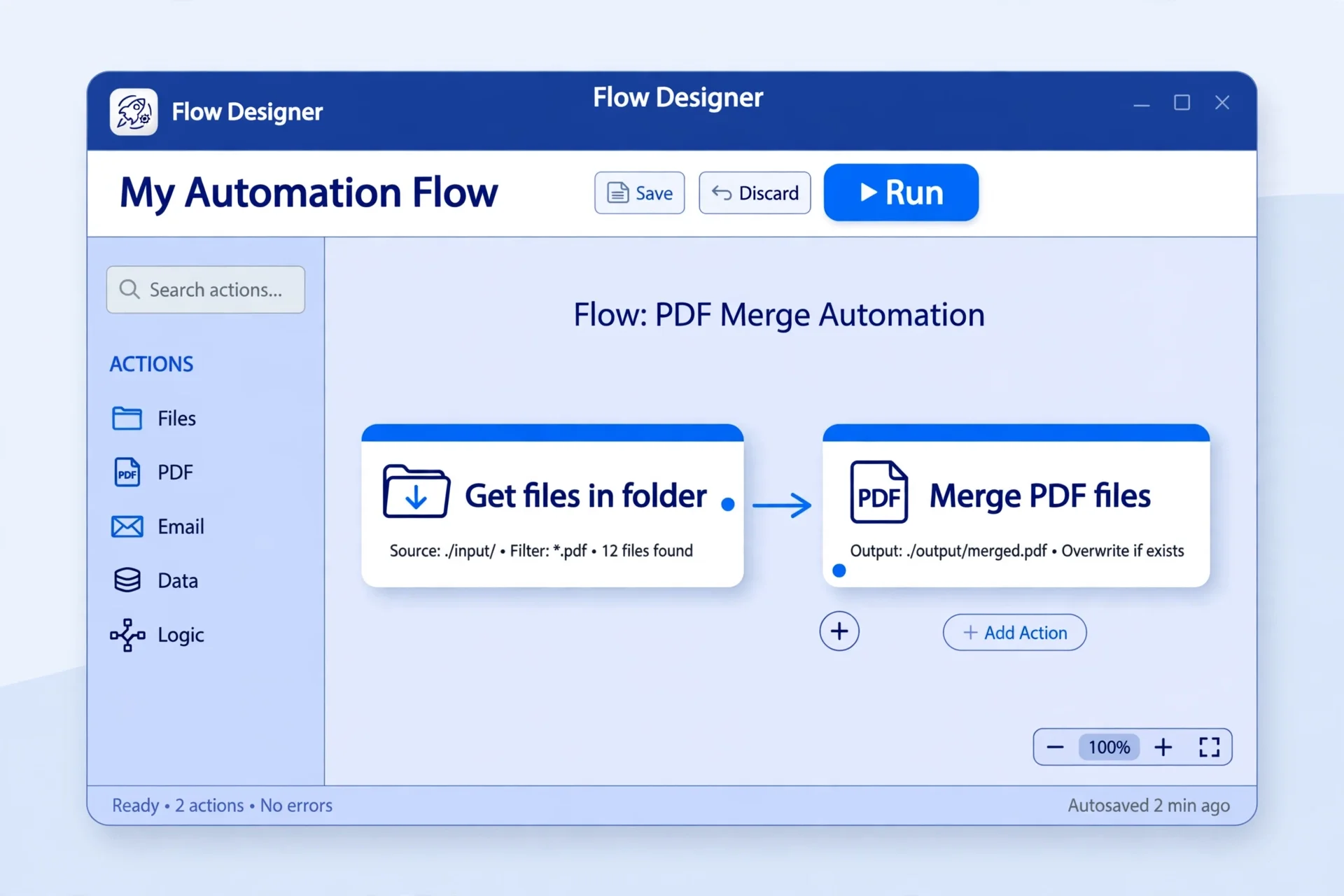
Step 3: Get the files. In the Actions pane, search for "Get files in folder", drag it into the flow, and point it at the folder holding your PDFs. The action saves the list in a variable called Files. If you want to pick files each time instead of a whole folder, use the "Display select file dialog" action with multiple selection turned on.
Step 4: Merge them. Search for "Merge PDF files" under the PDF actions and drag it in. Set the PDF files to the Files variable, set the Merged PDF path to the folder and file name you want, and turn on Overwrite if the file may already exist.
Step 5: Run the flow. Click Run. Power Automate builds the merged PDF in the folder you chose. Save the flow, and the next merge is one click.
Attended desktop flows are free with Windows for your own use on your own PC. You only need a paid Premium licence for unattended runs or cloud triggers, which a simple merge does not need. The steps above follow the published guides to merging PDFs with Power Automate Desktop and merging selected PDF files in Power Automate Desktop.
Which method should you pick?
All three methods are free, and all three work. The right one depends on what you need from the merge.
| Method | Best for | Install | Speed |
|---|---|---|---|
| Browser tool | One-off merges, locked-down work laptops | None | About a minute |
| PDFsam Basic | Sensitive files, offline work, frequent merges | Free app | A few minutes |
| Power Automate | The same merge every week, hands-free | Built into Windows 11 | 10 minutes to set up, seconds to run |
My recommendation is simple. Use the browser tool when you just need it done now and you do not want to install anything. Use PDFsam when the files are private or you merge PDFs every day. Use Power Automate when the same merge repeats every week and you want it down to one click. If the file is sensitive, pick the route that never uploads it.
What Windows can and cannot do
Windows 10 and Windows 11 have no built-in PDF merger, and none of the tools that come with Windows can join two PDFs into one. Knowing this saves you from trying each one in turn.
Microsoft Edge can open, annotate, and print PDFs, but it cannot merge them. You can read a PDF in Edge, add notes, and print it, but there is no combine option anywhere in the browser.
Microsoft Print to PDF cannot merge existing PDFs. It prints one document at a time into a new PDF. Printing several PDFs to it produces several files, not one.
Microsoft Word is not a reliable workaround. Word converts PDF content into an editable Word layout before exporting it again, which can alter formatting and remove links, forms, bookmarks, and accessibility information. Use it only if you are willing to rebuild the layout by hand.
Adobe Acrobat Reader cannot merge. Merging is a paid feature in Acrobat Pro, which runs on a monthly subscription. Adobe does offer a free online merge tool for a one-off job, but it uploads your files to Adobe's server, so keep sensitive documents on your own PC instead.
Other free options worth knowing
The three methods above cover most people, but two more free options are worth a mention.
PDF24 Creator. A free Windows app with a visual page view, so you can see, rotate, remove, or rearrange individual pages before saving. It bundles merge together with compress, convert, and OCR tools, all local. Pick it if you want one free app that does more than merging.
qpdf, for the command line. If you are comfortable with a terminal, qpdf is a free command-line tool. One command joins the files in the order you type them: qpdf --empty --pages first.pdf second.pdf -- merged.pdf. It is fast and scriptable, but it is not for everyone, and a typo in a file name means no output at all.
How to merge only some pages from a PDF
Sometimes you need pages 2 to 4 of a report, not the whole thing. All three methods above join whole files, so pull the pages out first.
Step 1: Extract the pages you need. Open the Split PDF tool, enter the page range you want, for example 1-3, 6, or 9-10, and download the result. PDFsam can do the same with its Split module if you already have it installed.
Step 2: Merge the extracts. Add the extracted files to any of the three methods above, in the order you want, and merge them as normal.
You can also fix a page that came out sideways before you merge. If a scanned page reads upside down, our guide to fixing a sideways scanned PDF covers it in detail, and the Delete / Rotate PDF Pages tool fixes rotation in your browser.
Common mistakes and fixes
Merged in the wrong order. The files joined in the order they were added, not the order you meant. Fix it by renaming files with numbers before you start, such as "1-cover-letter.pdf" and "2-cv.pdf", and by checking the order in the file list before you click Merge.
"This PDF is locked" error. Fix it by removing the password first, if you know it, or by asking the sender for an unlocked copy. No merge method on Windows can open an encrypted PDF while it is locked. Our guide to removing a password from a PDF walks through it.
Merged file too big to send. Merging does not shrink anything. The merged file is about as big as the files added together, and a 40 MB result will still bounce back from an email form. Fix it by compressing the result with the Compress PDF tool, or read our guide to fixing a PDF that is too big to email.
Pages upside down or sideways after merging. Fix it by rotating the pages with the Delete / Rotate PDF Pages tool before you merge, or by re-merging after fixing the rotation in PDFsam.
The new file has a generic name. Fix it by renaming the merged file the moment it appears. A file called "merged.pdf" looks careless in a job application and gets lost in a Downloads folder full of files with the same name.
Frequently asked questions
Can I merge PDFs on Windows 10 for free?
Yes. Use a browser merge tool, which needs no install and no account, or install PDFsam Basic, which is free and open source and works offline. Power Automate Desktop is also free with Windows and has a built-in Merge PDF files action. Windows itself has no built-in merge feature.
How do I merge PDFs on Windows 11 without Adobe?
Open Edge or Chrome, use the free Merge PDF tool on this site, add your files, arrange them with the arrows, and click Merge PDFs. For an offline option, install PDFsam Basic, choose Merge, add your files, and click Run. Neither method needs Adobe or an account.
Does Windows 11 have a built-in PDF merger?
No. Windows 11 opens PDFs in Edge and prints to PDF, but it has no merge function anywhere in the system. You need a browser tool or a free desktop app such as PDFsam Basic, or the Merge PDF files action in Power Automate Desktop, which comes with Windows 11.
Is PDFsam Basic really free?
Yes. PDFsam Basic is free and open source, and the developer states that the free version adds no watermark and has no file-size limit. Download it from the developer's own website, pdfsam.org, rather than a download mirror. A paid Enhanced version exists, but you do not need it for merging.
Can I merge PDFs with Power Automate Desktop?
Yes. Power Automate Desktop comes free with Windows 11 and is a free download for Windows 10. Create a new flow, add the Get files in folder action, then add the Merge PDF files action and set the output path. Build the flow once and run it whenever you need to merge.
Can I merge a password-protected PDF on Windows?
No, not while it is locked. PDFsam, Power Automate, and most merge tools cannot open an encrypted PDF. Remove the password first, if you know it, or ask whoever sent the file for an unlocked copy, then merge as normal.
Is it safe to merge PDFs online on Windows?
It depends on the tool. The merge tool on this site runs in your browser, so your files never leave your PC. Most other free online tools upload a copy to their server. Use on-device methods, such as PDFsam or a browser tool that processes files locally, for passports, bank statements, and contracts.
Try the free tool
The short version: Windows has no built-in way to merge PDFs, but you do not need Adobe. A browser tool does it in about a minute, PDFsam Basic does it offline for free, and Power Automate Desktop can repeat the job with one click. If the file is sensitive, pick the route that never uploads it.
When you are ready, open the free Merge PDF tool on your Windows PC, add your files, arrange them, and download the result. If you want the full version on any computer, read how to merge PDF files online free. If you are merging on your phone instead, read how to merge PDFs on your phone without an app. And if you use a Mac at home, read how to merge PDFs on a Mac.
How we tested this: we checked the browser merge steps against the Merge PDF tool on this site, and the PDFsam and Power Automate steps against their published guides, linked above. The Windows steps follow Digital Citizen's guide to combining PDF files and the Power Automate guides linked in Method 3. Menu labels vary between versions, so follow the labels on your own PC.
Privacy note: the Merge PDF, Split PDF, Compress PDF, JPG to PDF, and PDF to JPG tools on this site need no account and no signup. Your files are processed in your browser and never uploaded, never stored, and never shared with third parties. When you close the tab, the working files disappear with the session.
Last updated: November 12, 2026