Your PDF Is Too Big to Email? 5 Fixes That Actually Work
You hit Send. The mail app says the file is too large. The deadline is today. Here are five fixes that get your PDF under the limit, starting with the one that works in under a minute.
Quick answer
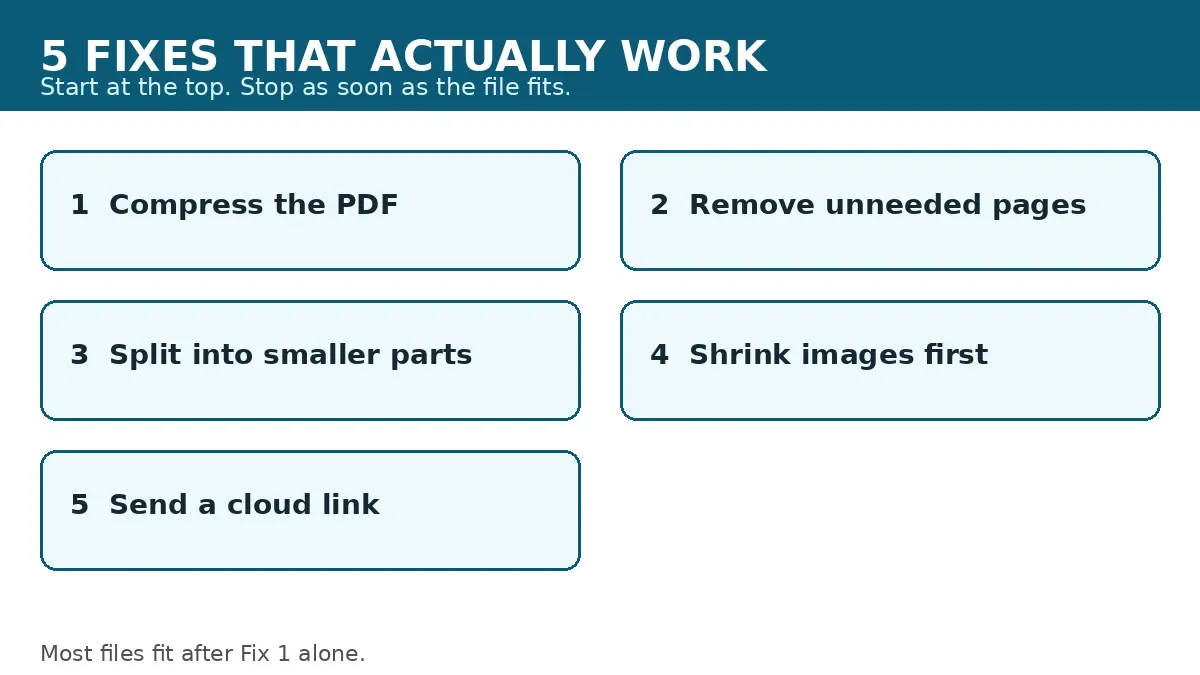
If your PDF is too big to email, compress it first. Open a free PDF compressor, upload the file, and download the smaller version. Most text documents and photo PDFs drop enough to fit under Gmail and Outlook limits in one pass. If it is still too large, remove unneeded pages, split the file, or send a cloud link.
Why email rejects big PDFs
You did not do anything wrong. Email was never built for large files. Every provider sets a cap on the total size of one message, attachments included. When your PDF passes that cap, the send fails, or the message bounces back later from the recipient server.
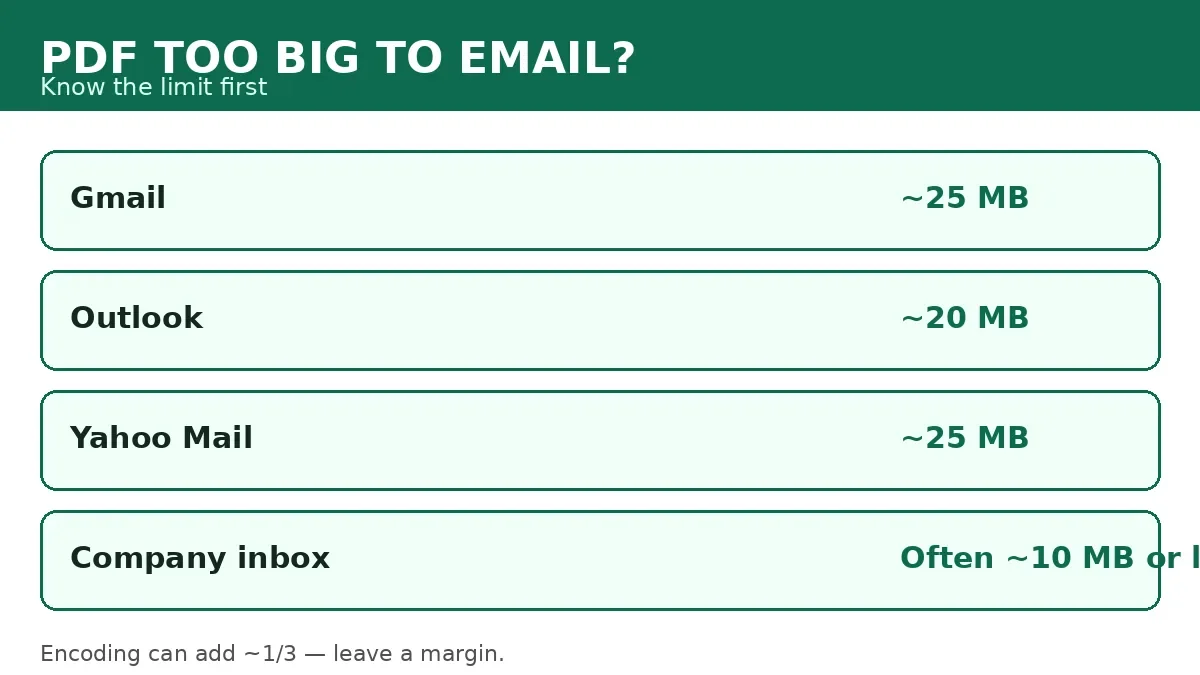
The limits differ by provider. Gmail allows about 25 MB per message, including all attachments together. Outlook allows about 20 MB by default. Yahoo Mail allows about 25 MB. Many company mail servers set a much lower cap, often around 10 MB or less. Your file can send fine from Gmail and still bounce when it hits a strict company inbox.
Two hidden details make the problem worse. First, email encoding adds overhead. When an attachment travels through mail servers, it gets encoded, which can inflate its size by roughly one third. A 19 MB file can count as about 25 MB once encoded. Second, the recipient limit matters as much as yours. You control your own provider. You do not control theirs.
PDFs grow large for a few clear reasons. Scanned pages are pictures, and a 30 page scan at high resolution can pass 50 MB on its own. Phone photos inside a PDF add megabytes fast. Embedded fonts, charts, and print ready graphics add more. A PDF built for printing will almost always be larger than one built for email. That is why the fixes below start with the biggest cause and work down.
Fix 1: Compress the PDF (try this first)
Compression is the fastest fix because it attacks the main cause of a large PDF: oversized images. A compressor rewrites the images inside the file at a lower resolution and re-encodes them. The text layer stays intact, so the document stays searchable and selectable. Most files shrink a lot with no visible change on screen.
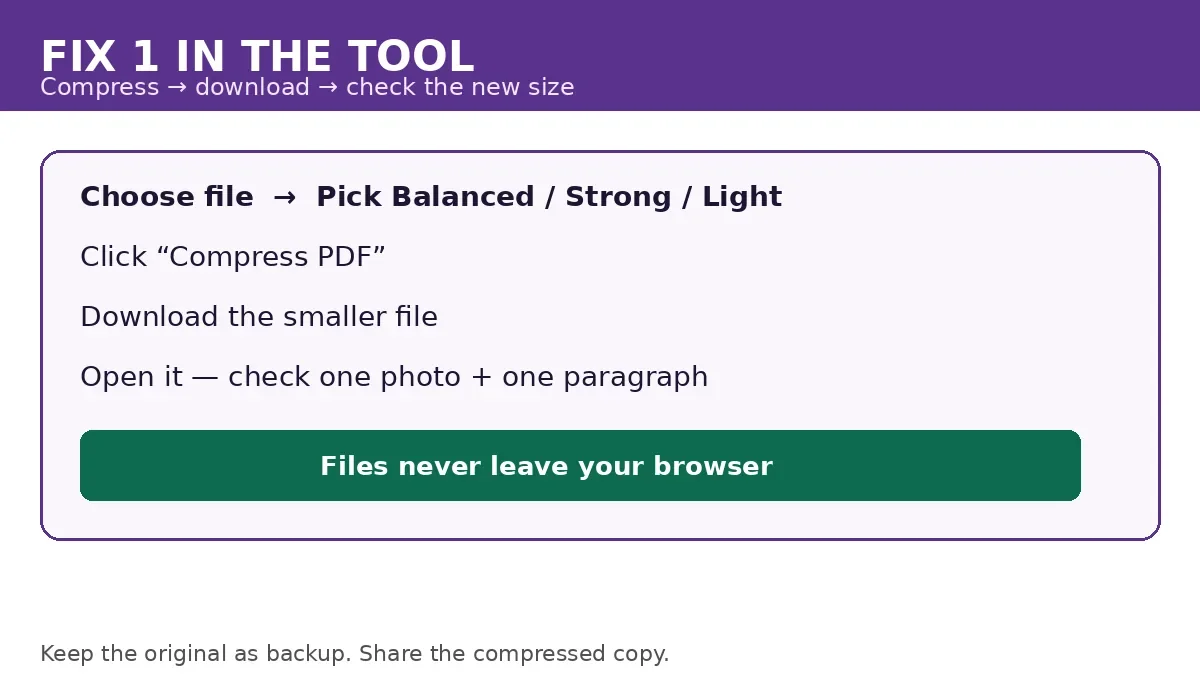
- Open the free Compress PDF tool. Use the Compress PDF page on this site. Choose a file, pick Balanced, Strong, or Light (or drag the fine-tune slider), then click “Compress PDF”. The tool shows the before and after sizes.
- Upload your PDF. Drag the file onto the page or choose it from your device.
- Compress and download. Run the compression, then download the smaller file and check the new size shown on the page.
- Open the result and check it. Zoom in on one photo and one paragraph. If text looks sharp and photos look fine on screen, you are done.
- If it is still too large, run it once more at a stronger setting. When a form or inbox demands an exact size rather than just smaller, our guide shows how to compress a PDF to an exact size. A second pass can push it further, but watch small print in scans. Strong compression can soften fine detail.
How much will it shrink? It depends on what is inside the file. Image heavy scans often shrink by a large share, because their size comes from embedded pictures. Text only PDFs shrink less, because text was never the problem. If your file is mostly text and still too large, the size is coming from somewhere else, and Fix 2 or Fix 3 will help more.
Use compression when the PDF will be read on screen. A report, an application, a contract draft, or a school assignment all fit this case. Skip heavy compression when the PDF must be printed at full quality, such as artwork or a photo portfolio. For those files, Fix 5 is the better choice.
Fix 2: Remove pages you do not need
Many PDFs carry pages the recipient never asked for. Cover sheets, blank pages, duplicate scans, old drafts at the end, and appendix pages you meant to cut all add size. Removing them is free, fast, and it also makes your email look more careful.
- Open the PDF and scan the page list. Note the pages you can drop: blanks, duplicates, and sections the recipient does not need.
- Open the Delete and Rotate tool. Use the Delete / Rotate PDF Pages page. Select the PDF, type the pages to delete as numbers and ranges separated by commas (for example 2, 5-7), then click “Apply changes” and download the edited PDF.
- Delete the unneeded pages and download. Check the page count before and after, then check the new file size.
- Compress after deleting, if it is still too large. Deleting pages and then compressing stacks both savings.
A student once sent a 40 page thesis draft to a tutor and wondered why it bounced. The last 12 pages were old notes she had meant to delete. Cutting them took two minutes and the file fit. Check your own file for the same kind of leftover pages before you try anything clever. If most of those leftover pages are blanks left over from scanning, our guide on how to remove blank pages from a PDF shows how to spot them and strip them out.
Fix 3: Split it into smaller parts
Some documents are honestly large. A 200 page scanned contract, a full course pack, or a year of bank statements will not shrink enough with compression alone. Splitting is the honest answer. You break the PDF into two or three smaller files and send them as separate attachments or separate emails.
- Decide the split points. Split by chapter, by section, or by page range. Keep each part under the limit with room to spare.
- Open the Split PDF tool. Use the Split PDF page. Select the PDF, choose a split mode, type the pages to extract as numbers and ranges separated by commas (for example 1-3, 6, 9-10), then click “Extract pages” and download the new file.
- Split by page range and download each part. Name the parts clearly, for example Contract part 1 of 3, so the recipient can reassemble them in order.
- Tell the recipient in the email body. Write one line: this file comes in three parts, please open them in order.
Splitting works best when each part stands on its own. A contract split by section is easy to follow. A novel split in the middle of a sentence is not. If you must split mid chapter, split at a page break and say so in the email.
Fix 4: Shrink the images before you rebuild the PDF
If you are building the PDF yourself from photos or screenshots, fix the images before you build the file. A phone photo can be several megabytes on its own. Ten of them in one PDF will pass any email limit before you add a single word of text.
- Shrink the photos first. Reduce each photo to the size it will be viewed at. A photo that will be read on screen does not need print resolution.
- Rebuild the PDF from the smaller images. Use the JPG to PDF tool to combine the smaller images into one compact PDF. Choose the JPG or PNG images in the order you want them, each image becomes one page in list order, then click “Create PDF” and download it.
- Check the new file size. If it is still too large, compress the rebuilt PDF with Fix 1.
This fix also helps when someone sends you a PDF built from photos and it bounces. You cannot rebuild their file, but you can ask them to resend it with smaller images, or you can split it with Fix 3. For your own files, shrinking images first saves you from compressing twice.
Fix 5: Send a cloud link instead
When the file must stay large, stop fighting the attachment limit. Upload the PDF to Google Drive, Dropbox, or OneDrive and send a link instead of the file. The email stays tiny. The recipient opens the link and downloads the full quality file.
- Upload the PDF to your cloud storage. Use the service your recipient already uses, if you know it.
- Set sharing so the recipient can open it. Use view only access for most files. Check the link in a private browser window before you send it.
- Paste the link into the email. Add one line that names the file and says what it is, so the recipient trusts the link.
Cloud links are the right choice for print quality files, artwork, large scans, and files over about 25 MB. They also help when you are not sure about the recipient limit. A link has no attachment cap to hit.
Two cautions apply. First, check the sharing setting. A link set to private will bounce the recipient to a login screen. Second, do not use a cloud link for a file the recipient must keep as an email attachment for records, such as some legal or finance filings. For those cases, split the file or ask the recipient which route they accept.
Which fix should you pick
Match the fix to the file. A one page photo PDF needs compression. A 200 page contract needs splitting. A print quality portfolio needs a cloud link.
| Situation | Best fix | Why |
|---|---|---|
| Normal PDF, just over the limit | Fix 1: Compress | Fastest, keeps one file, keeps text searchable |
| PDF with blank or extra pages | Fix 2: Remove pages | Cuts size and cleans up the document |
| Very large document, still too big after compression | Fix 3: Split | Each part fits, recipient reassembles in order |
| You are building the PDF from photos | Fix 4: Shrink images first | Fixes the cause before the file exists |
| File must stay full quality, or over 25 MB | Fix 5: Cloud link | No attachment cap, full quality preserved |
My recommendation is plain: always try compression first. It solves the problem in under a minute for most files. If compression alone does not get you under the limit, remove pages, then split. Reach for a cloud link only when the file must stay large or the recipient limit is unknown.
Common mistakes and fixes
- Zipping the PDF and expecting a big saving. ZIP helps with text files. It barely shrinks a PDF that is already compressed, because the images inside are already encoded. Try compression or splitting instead.
- Compressing so hard the file becomes unreadable. If small print in a scan turns blurry, you went too far. Use a lighter setting, or compress only once and then split.
- Sending one giant file to a company inbox. Company servers often cap at about 10 MB or less. Aim for well under 10 MB when the recipient uses a work address.
- Forgetting the encoding overhead. A 20 MB file can count as about 25 MB after encoding. Leave a margin. Aim for at least 20 percent under the stated limit.
- Sending a cloud link set to private. Test the link in a private window. If it asks for login, fix the sharing setting before you send.
- Renaming parts badly. Name split parts with numbers and a total, such as Report part 1 of 3. Do not send three files all named Report final.
How we tested this
Before you rely on a fix, try it on your own file first:
- Take a PDF that is too large to send and note its exact size.
- Compress it with the Compress PDF tool and record the new size and the visual quality at 100 percent zoom.
- Delete unneeded pages from a copy and record the size change.
- Split a large test file and confirm each part opens and the page order is correct.
- Send a test email to yourself with the final file or link and confirm it arrives.
- Check the compress, delete, split, and JPG to PDF links open the correct pages.
Pros and cons
Pros. Compression is instant, free, and keeps one file. Removing pages cleans up the document. Splitting works for very large files. Shrinking images fixes the cause. Cloud links dodge the limit entirely.
Cons. Heavy compression can soften scans. Deleting pages is permanent if you do not keep a copy. Splitting adds work for the recipient. Cloud links need the right sharing setting and are not right for every filing.
A note on privacy
Compression, Split, and Delete tools on this site run in your browser, so your file is never uploaded or stored. Each tool page states that processing happens in your browser tab. For private files such as contracts or medical records, prefer browser based tools over sites that upload your file to a server. If you must use a cloud link, set it to view only and remove access after the recipient downloads it.
Last updated: October 18, 2026.
Frequently asked questions
How do I email a PDF that is too big?
Compress the PDF first with a free compressor, then attach the smaller file. If it is still too large, remove unneeded pages, split it into parts, or upload it to Google Drive and send a link instead.
What is the Gmail attachment size limit?
Gmail allows about 25 MB per message, including all attachments together. Files over that limit get converted to a Google Drive link. Encoding overhead means a file near 20 MB can count as about 25 MB, so leave a margin.
What is the Outlook attachment size limit?
Outlook allows about 20 MB by default. Some company setups set a lower cap, often around 10 MB. If you send to a work address, aim well under 10 MB to be safe.
Why is my PDF so big?
Scanned pages, phone photos, high resolution images, embedded fonts, and print ready graphics make PDFs large. A 30 page scan at high resolution can pass 50 MB on its own. Compression targets the images, which are usually the main cause.
Does zipping a PDF make it small enough to email?
Usually not by much. ZIP barely shrinks a PDF whose images are already encoded. You will save more by compressing the PDF, removing pages, or splitting it into parts.
Is it safe to compress a PDF online?
It depends on the tool. Browser based tools that process the file on your device keep it private. Tools that upload your file to a server see the file. For contracts or medical records, use a browser based tool and skip sites that require upload.
Send it today
Do not let a bounce delay your deadline. Open your PDF, compress it, and check the new size. If it fits, attach it and send. If it does not, remove pages, split it, or send a cloud link. Shrink your PDF free now.