Should Your Resume and Cover Letter Be One PDF?
You have a resume ready, a cover letter written for this exact role, and maybe a certificate the posting asked for. Now the application form gives you one upload box, or an email address and no instructions at all. This guide gives you a clear rule for when to combine everything into one PDF and when to keep the files separate.
Quick answer
Keep your resume and cover letter separate unless the posting asks for one file, gives you a single upload box, or you are applying by email. When you combine them, put the cover letter first, then the resume, then only the certificates or references the posting asked for.
When one PDF is the right choice
One file makes sense when the employer leaves you no other clean option. The most common case is a form with a single upload box labelled "resume" or "application" and no second box for a cover letter. If you send only the resume, the letter never reaches the reader. If you send only the letter, the resume never does. One combined PDF is the only way both arrive together.
Email applications are the second case. A short email with one attachment reads better than an email with four files that can arrive out of order. A hiring manager who opens one file sees your introduction first and your resume right after it.
The third case is a posting that says so directly. Some postings ask for "one PDF containing your cover letter, resume and certificates" or ask you to upload "your complete application as a single PDF". Follow that instruction exactly. A posting instruction always beats any general rule, including this article.
One file also helps for a portfolio packet, where the posting asks for samples as well. The reader moves through one document in the order you chose, instead of opening several files and guessing which one comes first.
When to keep them separate
Separate files are the safer default, and most career advice agrees on this point. A resume and a cover letter do different jobs. The letter argues why you fit this one role. The resume lists what you have done. When a system gives you a box for each, use both boxes. That is what the system was built to receive, and it keeps each document easy to find on its own.
Keep them separate when the posting has a "resume" box and a "cover letter" box, when it says to attach the two documents, or when it asks for a Word file. Do not merge a file into a PDF when the posting asks for a Word document. Some systems read Word files better for their own screening, and changing the format after being told otherwise is an easy way to look careless.
There is another reason to stay separate. A combined file is harder to update. If you spot a typo in the cover letter after merging, you must rebuild the whole packet. With separate files, you fix one file and send it again.
So the rule is simple. Default to separate. Combine only when the posting, the upload form, or the email format forces one file. If you are unsure, read the posting once more. The upload boxes usually answer the question for you.
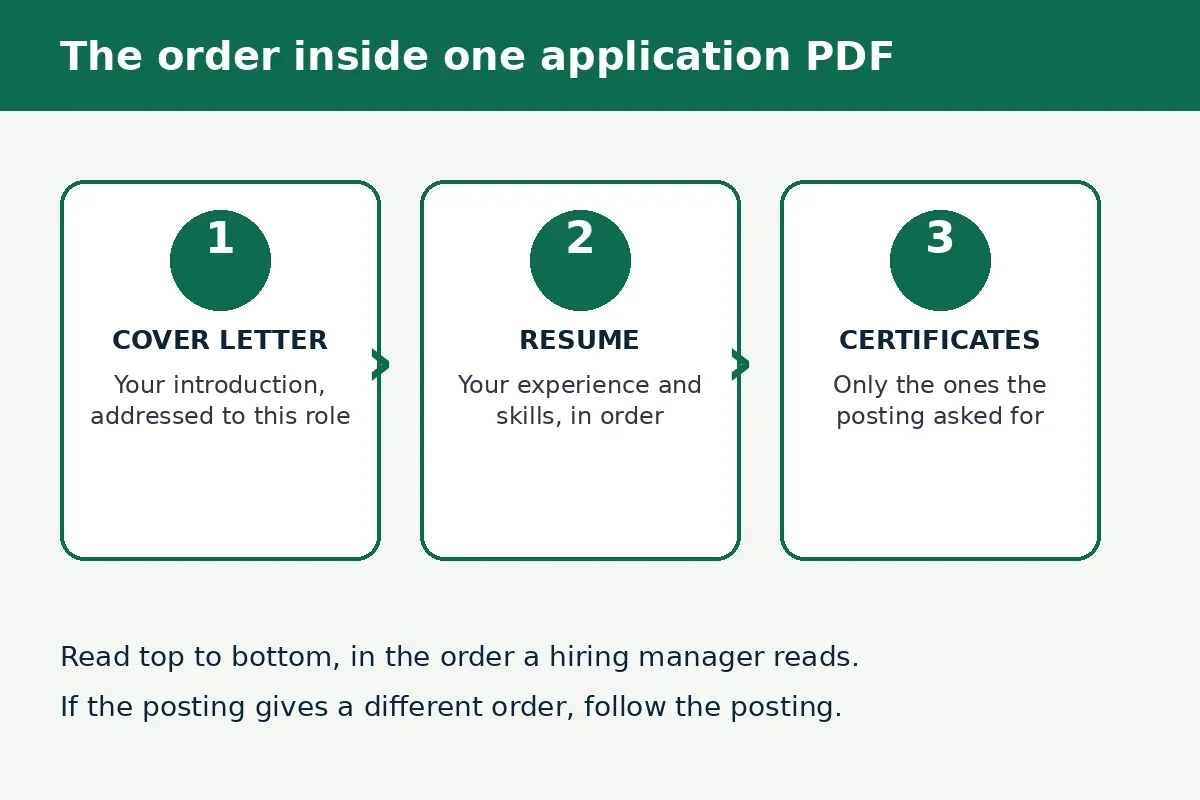
The order that reads best
When you do combine, order matters more than most people think. A hiring manager reads from the top, and the first page sets the tone for everything after it. Put the cover letter first. It is addressed to this company and this role, so it tells the reader why this packet exists before they see your work history.
Put the resume second. This is the document the reader will spend the most time on, and it should follow straight after the introduction that points to it. If your letter says "as my resume shows, I spent three years on support teams", the resume should be the very next thing the reader sees.
Put certificates, licences and references last, and only the ones the posting asked for. A certificate the employer did not ask for adds pages without adding value. If the posting asked for two certificates, include those two. If it asked for none, include none.
One exception: if the posting lists a different order, use its order. Some postings ask for the resume first and the letter after it. That is unusual, but a direct instruction from the employer wins over a general reading order.
| Section | Why it sits there | What to leave out |
|---|---|---|
| Cover letter | Introduces you and names the role | A generic letter written for any company |
| Resume | Shows your experience and skills | Old jobs with no link to this role |
| Certificates | Proves a qualification the posting asked for | Every certificate you have ever earned |
| References | Backs you up when requested | References when the posting did not ask for them |
How to combine them in 5 steps
You do not need paid software for this. The free Merge PDF tool on this site runs in your browser, needs no signup, and your files never leave your device. Work through these steps in order and check the result before you send it.
- Turn every document into a PDF first. The merge tool takes PDF files, so save or export your resume and cover letter as PDFs from your word processor before you start. If a certificate is a photo or a scan saved as a JPG, turn it into a PDF first with the JPG to PDF tool on this site.
- Name the files in the order you want them. Give them clear names such as 01-cover-letter, 02-resume and 03-certificate. Clear names stop a simple mix-up, like a certificate landing before the resume, and they make the list easy to check at a glance.
- Add the files to the Merge PDF tool. Open the Merge PDF tool, choose your files from your device or drop them into the upload area. Add two or more PDF files, in the order from step 2.
- Check the list before you merge. Look at the file order and remove any file you do not want in the final document. This check takes ten seconds and catches the most common mistake in a combined application: a wrong file, or the right files in the wrong order.
- Merge, download, and read the result. Click "Merge PDFs" and wait a moment while the pages are combined in your browser. Download the merged PDF, open it, and scroll through the first page of each section. Check that the cover letter comes first, the resume follows, and no page is missing or upside down. If a page is sideways, fix it with the Delete / Rotate PDF Pages tool before you send the file.
If the merged file is too large for an email attachment or an upload box, run it through the Compress PDF tool on this site, or read our guide on what to do when a PDF is too big to email. Keep your original files until you are sure the merged copy is correct.
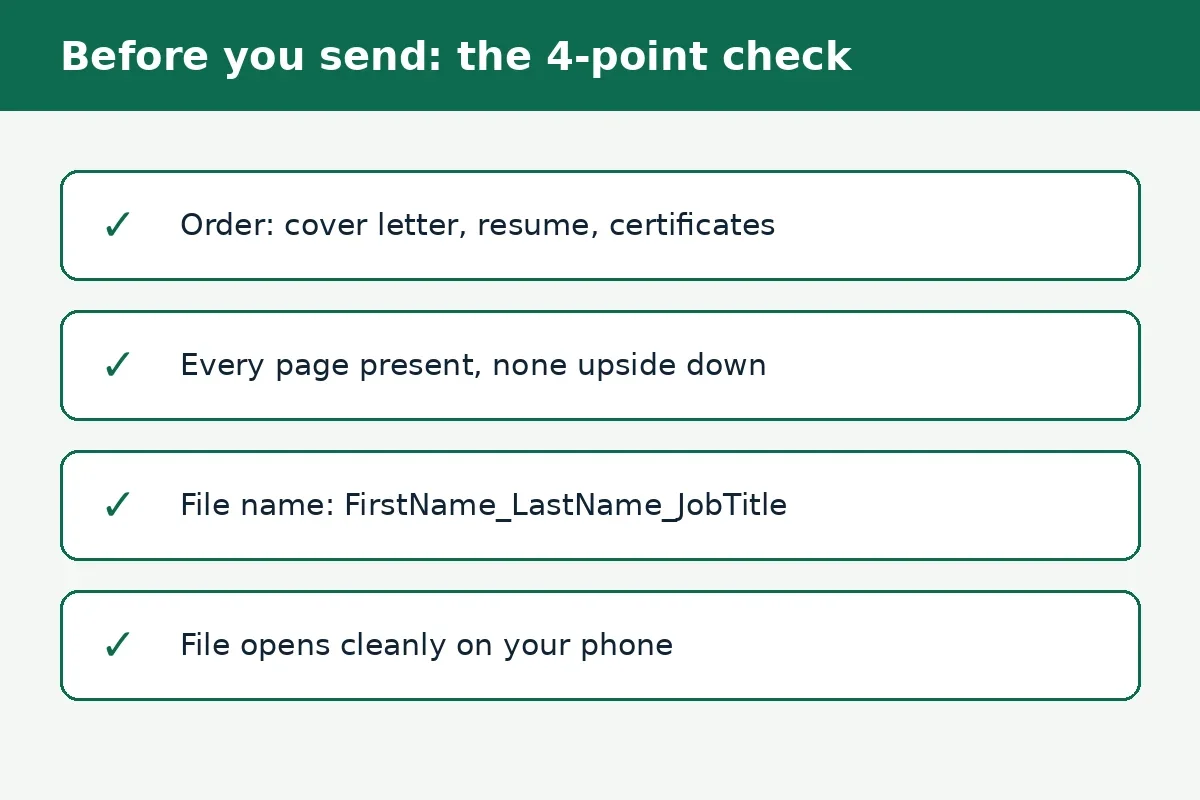
A file name that helps you
A hiring manager may download dozens of files in one day. A clear file name is a small kindness that also protects you. Use your name, the document type, and the job title, with underscores instead of spaces, like this: FirstName_LastName_JobTitle_Application.pdf. That name tells the reader whose file it is and which role it belongs to without opening it.
Leave the company name out. The hiring manager already works there, and adding it only makes the name longer. Skip vague names too: "Application.pdf", "Final.pdf" and "Resume_NEW.pdf" all look alike in a downloads folder.
Check the posting for a naming rule before you send. Some postings ask for a specific format, such as last name first or a reference number in the name. A posting rule beats this general pattern, just as it beats the general order rule.
Common mistakes and fixes
Most combined applications fail on small, fixable details. Check this table before you send.
| Mistake | What goes wrong | Fix |
|---|---|---|
| Merging when the form has separate boxes | You ignore the form the employer built | Use the separate boxes and send two files |
| Resume before the cover letter | The introduction arrives after the history | Put the cover letter first, unless the posting says otherwise |
| Adding every certificate you own | A focused packet turns into a long file | Include only what the posting asked for |
| Sending a generic cover letter | The letter could belong to any company | Rewrite it for this role and this company |
| Mixing Word files and PDFs | Layout shifts between readers and the merge fails | Turn every document into a PDF before merging |
| Never opening the merged file | A missing or upside-down page goes out unnoticed | Open the result and check the first page of each section |
The pattern behind all six is the same: the employer should never have to work to understand your packet. One file, one clear order, one clear name.
Frequently asked questions
Should my resume and cover letter be in one PDF?
Usually no. Keep them separate when the application form has a box for each document. Combine them into one PDF only when the posting asks for one file, the form gives you a single upload box, or you are applying by email with one attachment. A direct instruction in the posting always wins.
Should the cover letter or the resume come first in a combined PDF?
Put the cover letter first, then the resume, then any certificates or references the posting asked for. The letter introduces you and names the role, so it sets up the resume that follows. If the posting lists a different order, follow the posting instead.
Can I combine a resume and cover letter for free?
Yes. Save both documents as PDFs, then use the free Merge PDF tool on this site to combine them in your browser. It needs no signup and adds no watermark, and your files never leave your device. Check the file order before merging and open the result before sending it.
What should I name a combined application PDF?
Use your name and the job title, such as FirstName_LastName_JobTitle_Application.pdf. Underscores keep the name clean across systems. Leave the company name out, avoid vague names like Final.pdf, and follow any naming rule the posting gives you. That one pattern works for every role; change only the job title each time you apply.
Should I include certificates in my application PDF?
Include only the certificates or licences the posting asked for, placed after your resume. Extra certificates add pages without helping your case and can bury the resume. If the posting asked for no certificates, send none and keep the packet short.
What if the posting asks for a Word file instead of a PDF?
Send a Word file and do not merge anything into a PDF. Follow the format the posting asks for, even if you prefer PDF. Changing the format after a clear instruction looks careless, and some systems are set up to read one format only.
Try the merge tool free
Stop juggling four attachments for one application. Open the free Merge PDF tool, add your cover letter, resume and any requested certificates in order, check the list, and download one clean PDF ready to send.
How we tested this: we read the Merge PDF tool page on this site and confirmed it offers file selection and drag and drop, an order check with the option to remove unwanted files, in-browser merging with no signup and no watermark, and a download of the combined file. We checked the separate-versus-combined advice against career guidance from Indeed on naming a resume file and Resume Worded on cover letter and resume file names, and the email-application order against the University of Portland cover letter guide.
Privacy note: the Merge PDF tool on this site needs no account and no signup. Your files are processed in your browser, so a resume, cover letter or certificate never travels to a server to be combined.
Last updated: October 27, 2026
Related tools and guides
Merge PDF
Combine several PDFs into one file in your chosen order, free and in your browser.
Use tool →How to Merge PDF Files Online Free
The full guide to merging PDFs, with tips for a clean final document.
Read article →