How to Rotate a PDF and Save It Permanently (Free)
You rotate the page, it looks right, you close the file, and the next day it is sideways again. The problem is not you. It is the difference between rotating the view and rotating the pages. This guide shows you how to rotate a PDF and save it permanently, free, so it stays upright for everyone who opens it.
Quick answer
Open the free Delete / Rotate PDF Pages tool, choose your PDF, and pick the rotation that sets the pages upright. Click Apply changes and download the new file. The rotation is written into the PDF itself, so it opens upright for everyone. Most reverts happen because people rotated the view, not the pages.
Why your PDF keeps turning back sideways
You did nothing wrong. The viewer did exactly what you asked: it rotated your view of the page, then threw that view away when you closed it.
This is the single most common PDF rotation complaint on the internet. An Adobe community thread on exactly this problem, "Won't save the Rotated view" in the free Adobe Reader, has passed 130,000 views. The accepted answer is blunt: rotate view rotates the view only. You need the rotate pages function, which lives in the paid version of Acrobat.
Adobe's own blog says the same thing about the free Reader: when you rotate the page view, you are not able to make any changes that you can save in the document itself. And Adobe's help pages add the fine print: rotating the view only changes things temporarily, and the original page orientation is restored the next time you open the PDF.
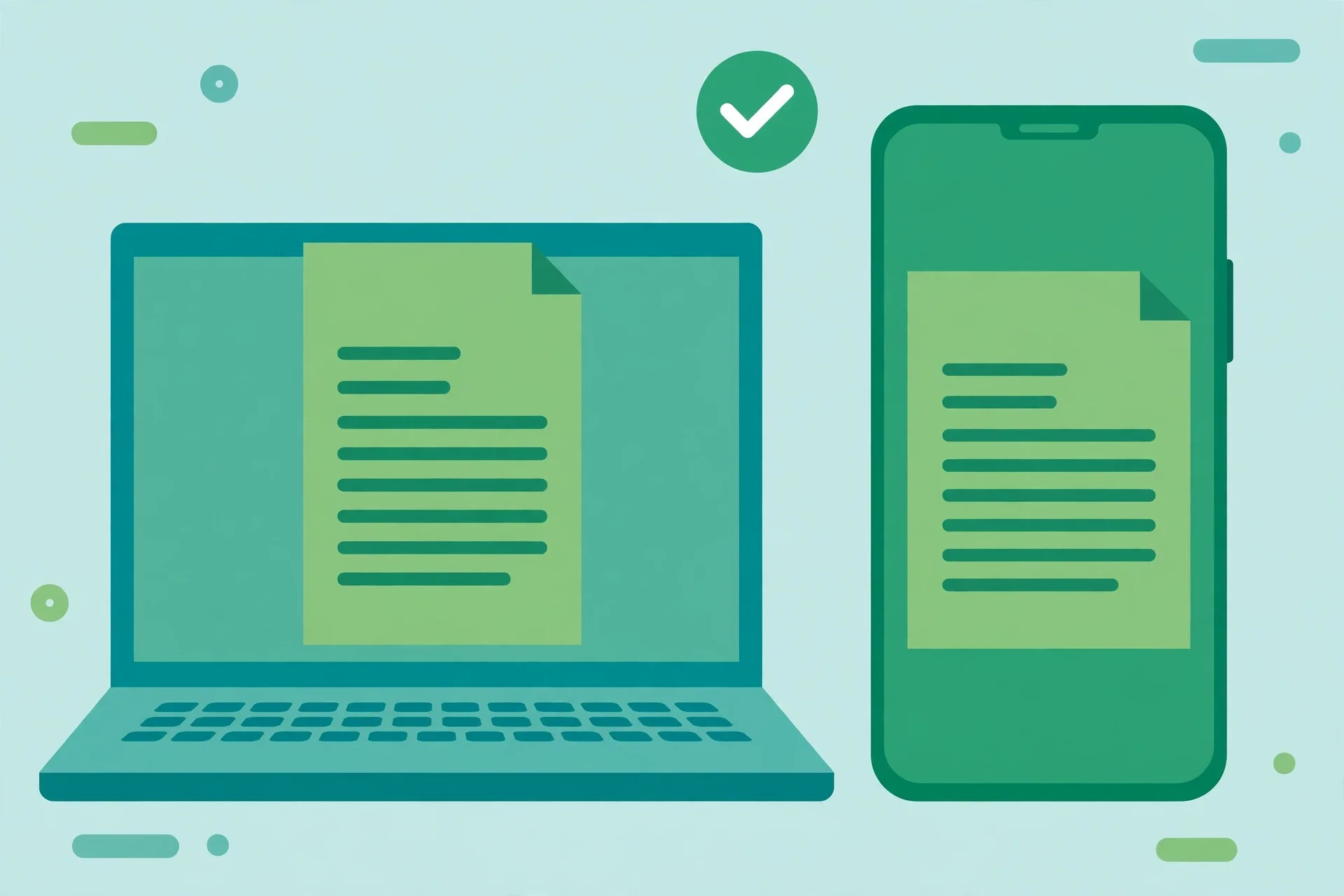
Here is the rule that fixes the confusion once and for all. Rotating the view spins the picture on your screen. Rotating the pages rewrites the PDF so every device, every app, and every person who opens it sees the same upright page. If the menu says "Rotate view," your change will not survive a close. If the command rewrites the file, through "Organize pages," a page editor, or a save, it will.
That is why the rotation "worked" when you did it and "broke" when you reopened the file. It never broke. It was never saved.
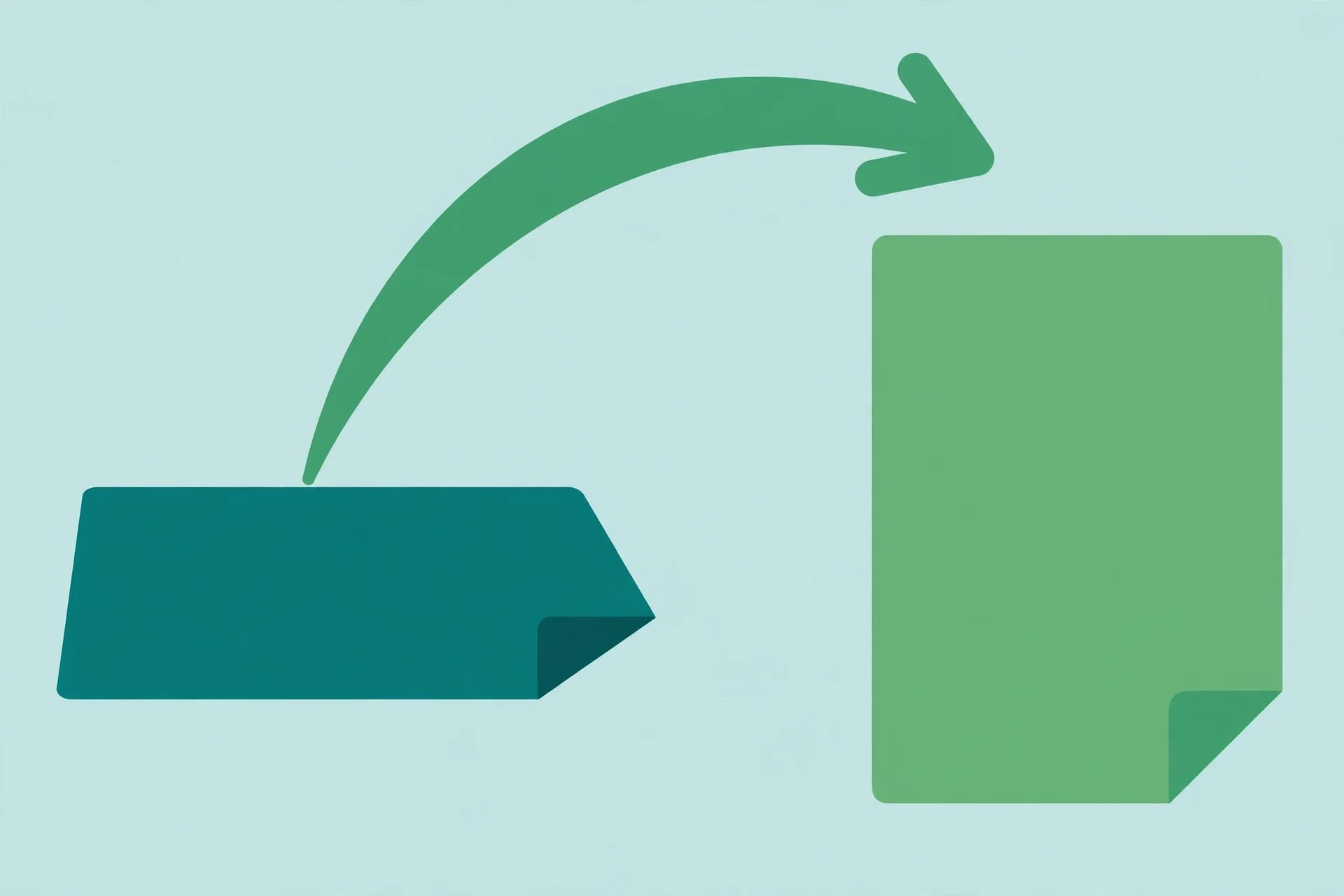
Rotate a PDF and save it in 5 steps
This method uses the free Delete / Rotate tool on this site. It rewrites the PDF in your browser, so the rotation is stored in the file you download, and your file never leaves your device.
- Open the Delete / Rotate PDF Pages tool. Go to the free page editor. There is no signup, no download, and no payment screen.
- Choose your PDF. Click Choose file, or drop the file into the Select a PDF box. The file opens in your browser tab.
- Leave the Pages to delete box blank. That box removes pages. If you only want to rotate, skip it and every page stays in the file.
- Pick the rotation that sets the pages upright. Choose 90, 180, or 270 degrees, depending on how far the pages are turned. The same rotation applies to every remaining page.
- Click Apply changes and download the new file. Close your browser tab, open the downloaded copy in any app, and check that the pages are upright. That reopened file is the proof the rotation saved.
The tool never touches your original. You get a brand new edited copy with the rotation baked in, and the source file stays exactly as it was. That is the whole point of a permanent rotation: a new file whose pages are upright by default, not a viewer trick that vanishes on close.
If the file is a scan where every page came out sideways, this is the fastest fix. One pass turns the whole document upright at once.
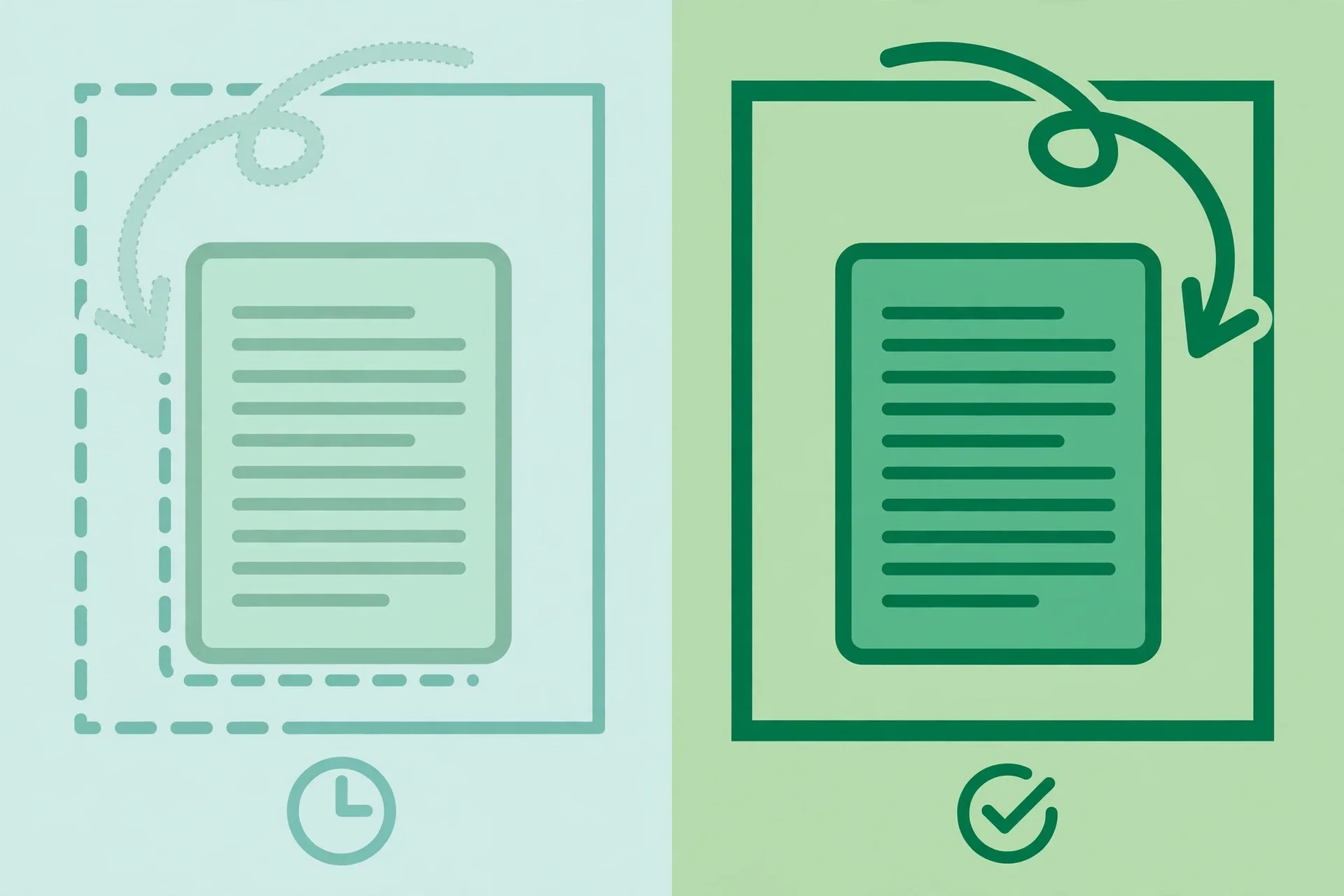
What if only one page is sideways?
A full-document rotation fixes the common case: every page turned the same wrong way. The awkward case is the mixed scan, where one landscape chart sits inside a portrait report, or page 4 came out upside down while the rest are fine.
Be honest about the tool you are using here. Our free tool applies one rotation to every remaining page, which is exactly what a whole-file problem needs. It does not rotate a single page differently from the rest. For that, you have two good options.
- Use Preview on a Mac. Open the thumbnails sidebar, select only the sideways page, and rotate just that page. This is the easiest per-page fix on a Mac, and the next section walks through it.
- Split, rotate, merge. If the odd page is in a Windows or online workflow, split the PDF so the sideways page sits in its own short file, rotate that file, then merge the pieces back together in order. It sounds like work, but the three tools run in your browser and the whole round trip takes a few minutes.
- Use Acrobat if you already pay for it. The Organize pages view lets you select a page range, a single page, even or odd pages, and rotate just that selection before saving.
If only one page is wrong, do not rotate the whole document to chase it. Fix the one page, or you will turn 19 correct pages sideways while fixing the one.
Rotate a PDF on Mac with Preview
Mac owners already have a permanent rotation tool, and it is free. Preview saves page rotation into the file, unlike browser viewers.
- Open the PDF in Preview and show the thumbnails sidebar from the View menu.
- Select the pages to rotate. Click one page, or hold Command and click several.
- Rotate with Tools, or a shortcut. Pick Tools, then Rotate Left or Rotate Right. The shortcuts are Command+L for left and Command+R for right, and the toolbar rotate button works too.
- Save with Command+S. Preview writes the rotation into the file. Reopen the PDF in another app to confirm it stayed upright.
This is the best answer for "how do I rotate a PDF on Mac and save it." No third-party site, no upload, no account. Just be sure you press Command+S before you close. An unsaved rotation in Preview is still just a view.
Chrome, Edge, and your phone
Browser PDF viewers are where most people first hit the rotation trap, because the rotate button is right there and looks like it should work.
- Chrome: the rotate button in Chrome's built-in PDF viewer changes only the view. Multiple tool guides report the same thing: downloading or printing the file brings back the original orientation. If you rotated in Chrome, you still need a real edit.
- Edge: this one is messy. Some guides say Edge's Save button keeps the rotation; others report the rotation is a viewing control that does not reliably become a permanent edit. Treat it as unreliable. If the rotation matters, redo it in a tool that definitely rewrites the file.
- Your phone: most mobile PDF viewers and share sheets rotate the view only. The simplest permanent fix on a phone is the browser route: open the free rotation tool in your mobile browser, apply the rotation, and download the fixed file.
When in doubt, the test is always the same: close everything, reopen the downloaded file in a different app, and check. Upright everywhere means saved. Upright in one viewer only means you rotated the view.
Common mistakes and fixes
- Rotating the view, then emailing the original file. The recipient opens a sideways PDF, because your rotation never touched the file. Fix: rotate the pages, download the new copy, and send that one.
- The Print-to-PDF workaround on files that matter. Rotating in a viewer and printing to PDF does bake in the rotation, but it creates a flattened copy. One guide that tested this warns it can drop bookmarks, form fields, hyperlinks, and digital signatures. Fix: only use Print-to-PDF on simple documents, and use a proper page editor for forms and signed files.
- The file is upright, but the printer still prints it sideways. The PDF is fine; your printer's auto-rotate setting is the culprit. Fix: in the print dialog, turn on auto-rotate or pick the correct paper orientation before printing.
- Assuming rotation hurts quality or changes the file size. Rotating pages changes the orientation setting, it does not re-encode the page content, so the text stays as sharp as before. Tool makers describe it this way, and the practical result is simple: your pages lose no quality from being turned upright.
- Trusting Edge's Save button for a rotation. Reports conflict on whether it sticks. Fix: verify by reopening in another app, and if it reverts, run the file through the rotation tool instead.
- Rotating every page to fix one. Fix: isolate the bad page with Preview's thumbnail selection or the split, rotate, merge round trip, and leave the good pages alone.
How we tested this
Before you rely on a method, try it on your own file first:
- Rotate a sideways PDF in Chrome's viewer, close it, and confirm the file reverts to sideways.
- Run the same file through the Delete / Rotate tool, download the copy, reopen it in a different app, and confirm the pages stay upright.
- On a Mac, rotate one page in Preview's thumbnail view, press Command+S, and confirm only that page turned.
- Print a fixed PDF and check the print dialog's orientation setting when the paper comes out sideways.
- Confirm the tool page links and the guide links in this article open the correct pages.
Pros and cons
Pros. Free, no signup, and no watermark. The rotation is written into a new copy of the PDF, so it is permanent across every app and device. The tool runs in your browser, so private files stay on your device, and the original file is never changed.
Cons. The rotation applies to all remaining pages at once, so it is not the tool for one sideways page in an otherwise fine document. It edits one file at a time. It fixes the PDF, not the scanner, so a misloaded scanner will keep producing sideways files until you fix the feed tray.
A note on privacy
Rotating pages with the tool on this site keeps your file on your device, because the edit runs in your browser tab. Nothing is uploaded or stored. That matters for the documents people rotate most: scanned contracts, application forms, IDs, and medical records. If a site asks you to upload a file for a simple rotation, ask whether the same edit can run in your browser instead.
Last updated: October 23, 2026.
Frequently asked questions
Why does my PDF revert to sideways after I rotate it?
You rotated the view, not the pages. Most PDF viewers, including the free Adobe Reader, Chrome, and Edge, offer a rotate button that only changes what you see on screen. The file itself is untouched, so it opens sideways again. To make it stick, use a command that rewrites the PDF, like a page rotation tool or Acrobat's Organize pages, and download the new copy.
Can I rotate a PDF in the free Adobe Reader and save it?
No. The free Adobe Reader only rotates the page view, which Adobe says cannot be saved into the document. Saving a rotation needs the rotate pages function in paid Acrobat, or a free editor like the Delete / Rotate tool on this site, which writes the rotation into a new copy of the PDF.
How do I rotate a PDF on Mac and save it?
Open the PDF in Preview, show the thumbnails sidebar from the View menu, and select the pages. Use Tools, then Rotate Left or Rotate Right, or press Command+L and Command+R. Save with Command+S. Preview writes the rotation into the file, so it stays upright in every other app too.
Does rotating a PDF in Chrome save the rotation?
No. Chrome's built-in PDF viewer rotates the view only. If you download or print the file afterward, it comes back in the original orientation. Run the file through a rotation tool instead, download the new copy, and verify it stays upright when reopened in a different app.
How do I rotate only one page of a PDF?
On a Mac, select the page in Preview's thumbnail sidebar and rotate just that page. On Windows or the web, split the PDF so the sideways page is its own file, rotate that file, and merge the pieces back in order. Paid Acrobat can also rotate a selected page range directly in Organize pages.
Does rotating a PDF reduce its quality?
No. Rotating pages changes the orientation setting, it does not re-encode the page content, so text and images stay as sharp as before. Avoid the Print-to-PDF workaround for important files, though: it re-renders the file and can drop bookmarks, form fields, hyperlinks, and digital signatures.
Keep every rotation saved
Stop sending sideways PDFs and apologizing for them. Remember the one rule: rotate the view and it lasts a session, rotate the pages and it lasts forever. Open the file, apply the rotation to the pages, download the new copy, and reopen it somewhere else to confirm. Rotate your PDF and save it permanently, free, and move on to the actual work.
Related tools and guides
Delete / Rotate PDF Pages
Rotate every page by 90, 180, or 270 degrees and save it in one step.
Use tool →How to Delete & Rotate PDF Pages Online Free Guide
The full page cleanup routine: delete, rotate, and verify.
Read article →How to Split PDF Pages Online Free
Isolate the one sideways page, rotate it, then merge back.
Read article →Your PDF Is Too Big to Email? 5 Fixes That Actually Work
Sideways scans are often huge too. Shrink the fixed file.
Read article →